Choose DX07 or DX08 for step-by-step setup, everyday controls and troubleshooting guides. Check your exact version before following operating instructions.
Quick answers to common electric wheelchair questions.
Which KERDOM electric wheelchair is right for me?
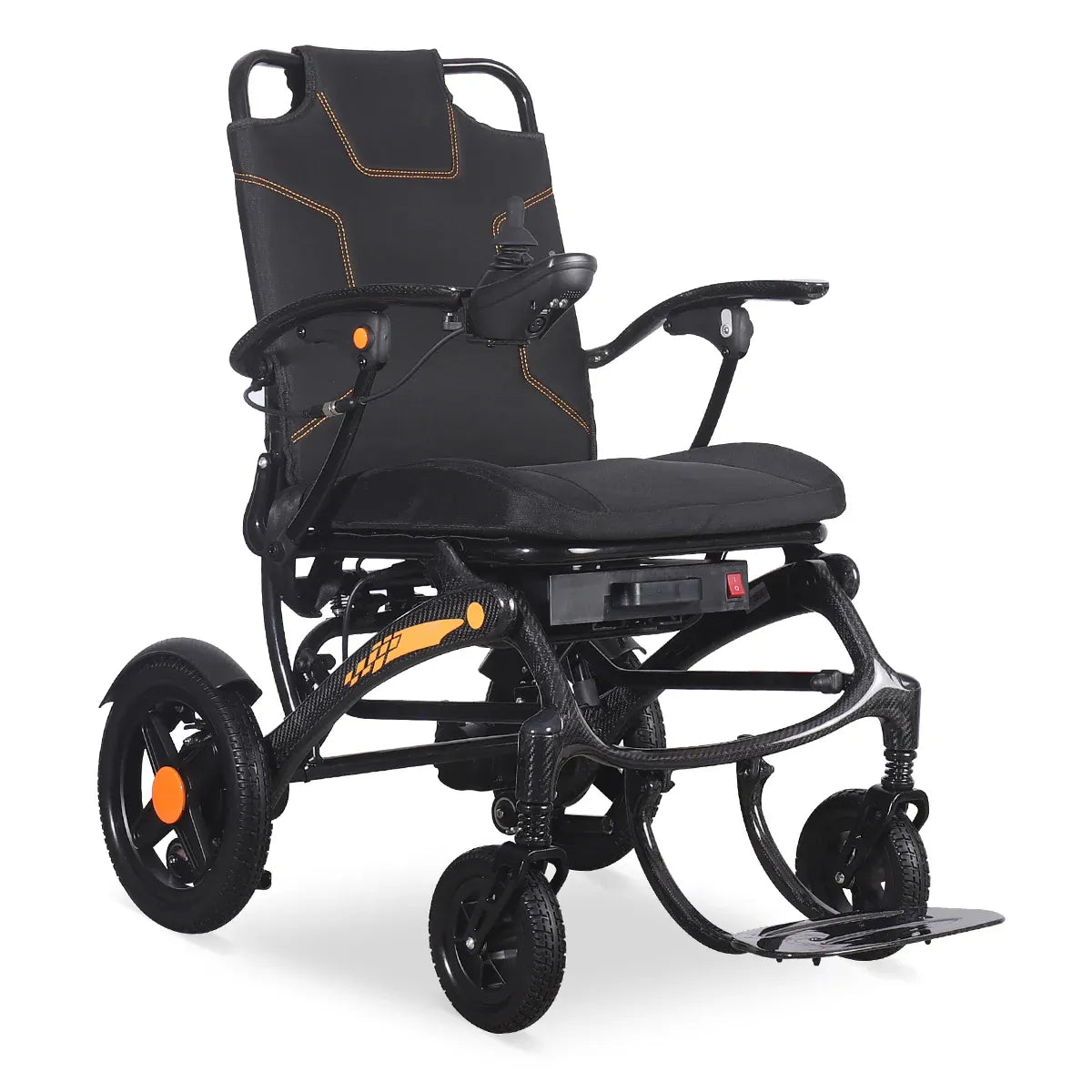
Start with the Wheelchair Recommendation Quiz, then compare seat fit, weight capacity, handling weight and the routes you use most. Contact us if you need help checking a specific requirement.
Where can I find my KERDOM wheelchair user manual?
Use the Model Manual Finder below the model cards for DX07 or DX08. Always confirm the manual matches your exact version. Other manuals are available on the official User Manuals page.
How do I fold my electric wheelchair for a car trip?
Stop on level ground, power off and follow your model’s folding instructions. Check frame locks, protect the controls and compare the full folded size with your vehicle’s cargo opening. Arrange lifting help when needed.
The DX07 and DX08 support left- or right-side mounting. Follow the model-specific mount and cable instructions; check compatibility before making changes on other versions.
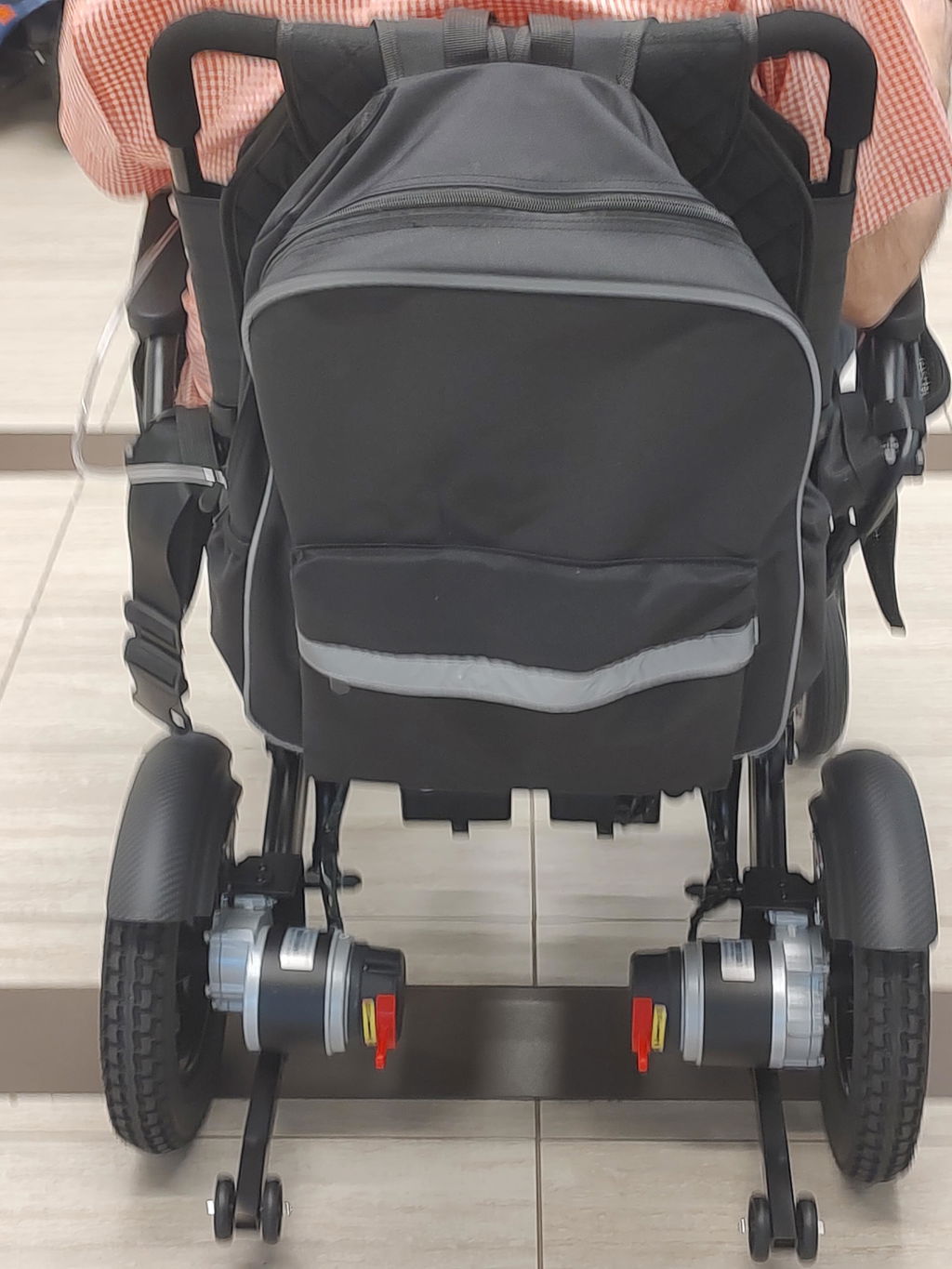
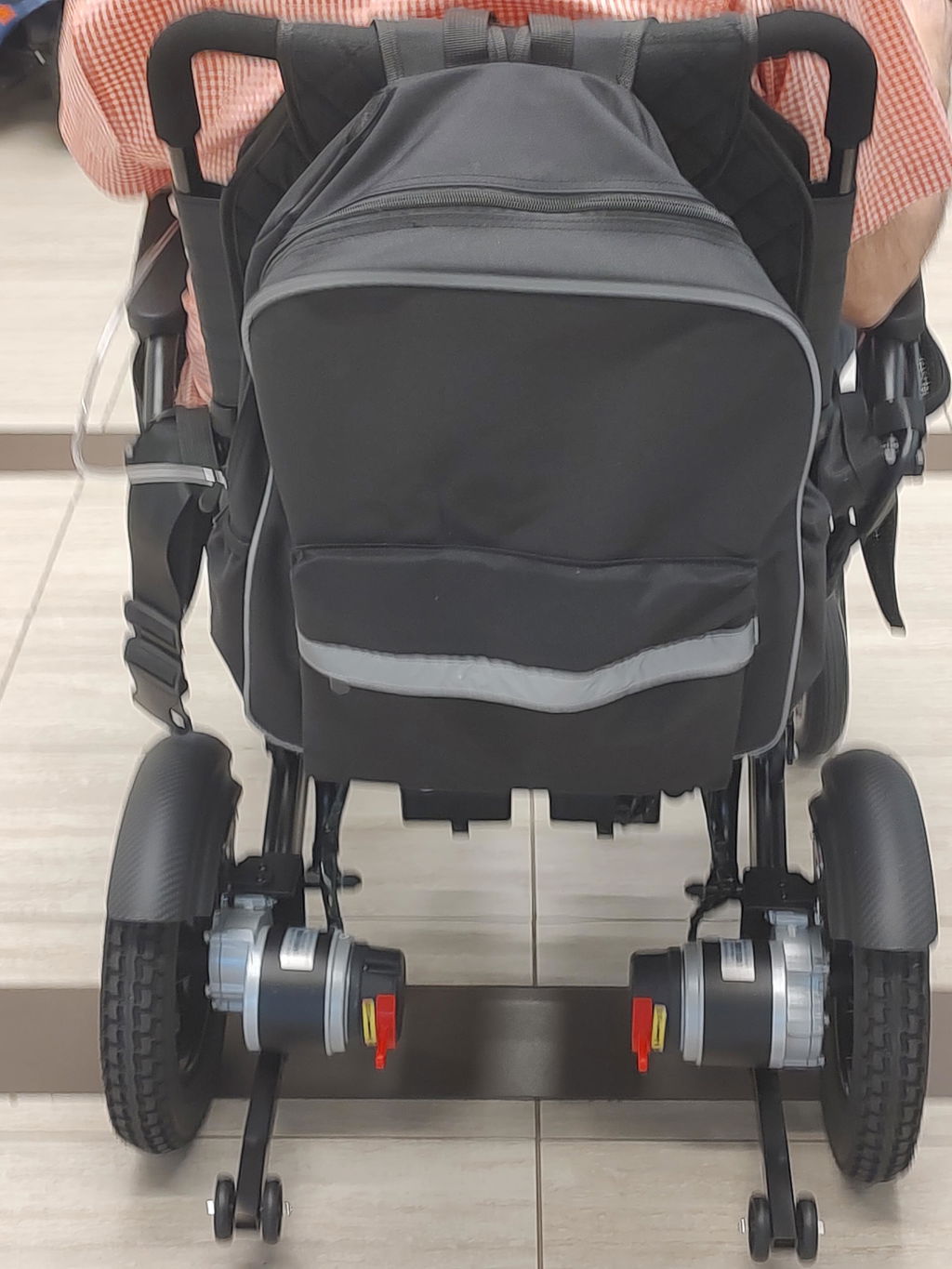
Models equipped with motor-release levers can be pushed by a companion when both motors are in manual / freewheel mode. Switch only while stationary on level ground. Automatic braking is released in this mode.
Which KERDOM wheelchairs include a caregiver remote?
DX07, DX08, DX07 Pro X and Titan X24 include a Bluetooth caregiver remote in the confirmed packages. Use the remote supplied for your chair and follow its pairing and operating instructions.
DX07, DX08, DX05 and Titan X24 have solid tires in the configurations covered by our guide. DX06 with pneumatic rear tires requires rear-tire pressure checks. All tire types still need regular condition checks.
Confirm your exact chair, battery configuration and any spare batteries with each operating airline before travel. Folding size or a battery rating alone does not guarantee acceptance.
Can I use my DX07 on grass, gravel or in the rain?
Choose maintained, firm routes and approach suitable outdoor surfaces slowly. Avoid loose ground, steep slopes, standing water and heavy rain. Check the DX07 outdoor and rain-use guides for specific precautions.
Most in-stock items dispatch within 1–2 business days. Contiguous-U.S. transit typically takes approximately 2–5 business days after dispatch. Processing and transit are separate estimates; availability and carrier conditions may affect timing.
What warranty and at-home trial does KERDOM offer?
Eligible wheelchairs have a 60-day at-home trial. Confirmed standard coverage includes five years for the frame, motors, battery and controller / joystick, and two years for other mechanical parts against manufacturing defects. Eligibility, exclusions and return conditions apply.
Can I use Medicare, HSA/FSA funds or monthly payments?
KERDOM does not bill Medicare, Medicaid or insurers directly. Confirm reimbursement eligibility with your provider or HSA/FSA administrator before purchase. Financing options, when offered at checkout, are subject to the provider’s approval and terms.
Tell us what you’re noticing in your own words. Include your model, order number and relevant photos or a short video so we can help with the next step.
For your privacy, do not send full payment-card details, bank passwords or verification codes.
We’re excited to help you get moving with your KERDOM wheelchair. Here’s what to expect between placing your order and receiving it at your door.
When Will My Order Arrive?
Your delivery timeline includes two stages: preparing your order and transporting it to your address.
Typical Timeframes:
Order preparation: Most in-stock items ship within 1–2 business days after your order is confirmed.
U.S. mainland delivery: Transit typically takes approximately 2–5 business days after dispatch within the contiguous United States.
U.S. warehouse fulfillment: Orders ship through our Los Angeles and Texas warehouse network, depending on inventory availability.
Please note: Processing and transit times are separate estimates, not a guaranteed arrival date. Weekends, holidays, weather and carrier conditions may affect delivery.
Preorders & Other Destinations
Some products or destinations need a different delivery timeline. Please check before ordering if you have a specific travel date in mind.
What to Check:
Preorders or out-of-stock items: Follow the availability or estimated shipping date shown on the product page or in your order updates.
Alaska, Hawaii, Canada or other destinations: Contact us before purchasing to confirm shipping availability, any additional charges and the estimated transit time for your address.
Tracking & Delivery Support
If you need help checking your delivery progress, our team is here to assist.
How to Stay Updated:
Shipment updates: Check your shipping-confirmation email for tracking details. The carrier’s tracking page provides the latest estimated arrival date.
Your wheelchair should fit your daily life—and getting help should feel straightforward. Whether you’re choosing a chair for yourself or a family member, KERDOM is here to guide you.
Your Support at a Glance
From trying your chair at home to getting help with a replacement part, here’s the support you can count on.
Your Key Benefits:
60-Day At-Home Trial: See how your eligible wheelchair fits your everyday routine.
Free Home Pickup: A prepaid return label and an arranged pickup for approved returns or exchanges.
5-Year Warranty: Frame, motors, battery and controller / joystick, against manufacturing defects.
2-Year Warranty: Other mechanical parts, against manufacturing defects.
Lifetime Technical Support: Help continues after warranty expiry; replacement-part charges may apply.
Help Without a Trip to a Service Center
Not sure how to install the joystick, pair the remote or check a charging issue? You don’t need to know the technical name of the part to ask for help.
How We Help:
Guided Checks: Send photos or a short video. We’ll walk you through suitable basic checks.
Compatible Parts: If a replacement is needed, we’ll identify the correct component and arrange delivery to your door.
Clear Next Steps: Contact us before transporting the chair for service so we can explain the available options.
Los Angeles & Texas Warehouse Network
Our U.S. warehouses help us get chairs and parts to you, with spare-parts and service shipments coordinated from Los Angeles.
What to Expect:
Locations: Los Angeles, California, and Texas.
Dispatch: Most in-stock items ship within 1–2 business days.
Transit: Approximately 2–5 business days after dispatch within the contiguous U.S.
Service Orders: Replacement shipments require assessment and approval first. Availability and carrier conditions may affect timing.
Growing Network: We’re expanding our service network. Please contact us before visiting a warehouse.
🧪 60-Day At-Home Trial
We want you to feel confident that your wheelchair fits your life. Try it at home—moving through doorways, sitting at your dining table and checking your storage space.
How the Trial Works:
Duration: Take 60 days from delivery to try your eligible wheelchair.
Getting Started: Practice at low speed on a clean, flat and dry surface.
If It Isn’t the Right Fit: Contact us within the trial period. We’ll explain your return or exchange options and any applicable fees.
Prepaid Label & Free Pickup: Once approved, we’ll promptly send a prepaid return label and arrange home pickup at a convenient available time.
Trial eligibility and return conditions apply. Inspection or restocking fees may apply.
If You Need a Return or Exchange
If your chair isn’t right for you or arrives with a problem, we’ll help you understand the options before you send anything back.
How We Handle Your Request:
Delivery Defects or Damage: Report within 7 days of delivery, with photos or video. Eligible quality-related return shipping is covered after verification.
A Fault Develops Later: Contact us promptly for warranty review.
Fit or Preference Concerns: We’ll review return or exchange options and explain any inspection or restocking deductions before you proceed.
Pickup Arrangements: We provide a prepaid label and free home pickup after approval, so you won’t need to take the chair to a shipping location.
Packing Guidance: Contact us first. We’ll explain how to prepare the chair for collection.
Warranty Coverage
If a part stops working, contact us so we can review the issue and help you find the next step.
What Your Warranty Includes:
5-Year Coverage: Eligible frame, motors, battery and controller / joystick, against manufacturing defects.
2-Year Coverage: Other mechanical parts, against manufacturing defects.
Approved Claims: Covered replacement parts and standard replacement-part shipping are provided at no charge.
Coverage Limits: Normal wear, misuse and accidental damage are excluded. Battery coverage does not include ordinary capacity loss over time.
Purchase Records: Keep your receipt and order number. Standard coverage applies to eligible direct purchases from kerdom.com by the original owner.
We’re Here for You
Tell us what you’re noticing in your own words. We’ll help you work out the next step.
KERDOM wheelchairs use different tire types depending on the model and configuration. Solid tires do not need inflation, while pneumatic (air-filled) tires require pressure checks and can provide additional cushioning.
Use this guide to identify the tire-care requirements for the models below. If your wheelchair has replacement tires or a different wheel configuration, confirm the requirements with KERDOM before inflating.
Tire Types at a Glance
Model
Tire Type
Inflation Required?
DX07
Solid front and rear tires
No
DX08
Solid front and rear tires
No
DX05
Solid front and rear tires
No
Titan X24
Solid front and rear tires
No
DX06 — pneumatic rear-tire configuration
Pneumatic rear tires
Yes, for the rear tires
DX07, DX08, DX05 & Titan X24 — Solid Tires
These models are equipped with solid tires on the front and rear wheels in the configurations covered by this guide.
No inflation is required.
No air-pressure monitoring is needed.
There is no air chamber to deflate.
Routine care is simpler than for pneumatic tires.
Solid tires still need inspection. Check regularly for worn tread, cracks, cuts, embedded debris or other damage. “No inflation required” does not mean “no maintenance required.” Contact support if a tire is damaged, a wheel wobbles or the ride changes noticeably.
DX06 — Pneumatic Rear Tires
The DX06 configuration covered here uses 12-inch aluminum-alloy rear wheels fitted with pneumatic tires. These air-filled tires require correct inflation to help maintain predictable handling and ride comfort.
Recommended Rear-Tire Pressure
Seasonal Guidance
Recommended Pressure
Summer
200–210 kPa
Winter
220–230 kPa
These figures apply only to the specified DX06 rear-tire configuration. Follow the instructions for your actual tire and wheelchair, and never exceed the maximum pressure marked on the tire. If the tire marking or supplied manual conflicts with this guidance, contact KERDOM before inflating. Replacement tires may have different requirements.
How to Check and Inflate
Park on firm, level ground, switch the chair off and secure it against movement as directed in the manual.
Check the rear-tire pressure when the tires are cold, before riding, using a suitable gauge.
Connect a pump compatible with the valve stem and add air gradually to the appropriate pressure.
Recheck the pressure, replace the valve cap and inspect both rear tires before use.
Air pressure changes with temperature, so check it rather than assuming the tire is correctly inflated because it was recently filled. Do not inflate an already damaged tire or continue riding on a visibly deflated one.
Punctures and Air Loss
Pneumatic tires can lose air through punctures, valve problems or other damage. Nails, sharp debris and impacts may damage a tire; no surface or object can be guaranteed harmless. If a tire repeatedly loses pressure, arrange inspection rather than simply adding more air.
Quick Summary
DX07, DX08, DX05 and Titan X24: No inflation or pressure checks are needed for their solid tires, but regular condition checks are still important.
DX06 with pneumatic rear tires: Check rear-tire pressure and condition regularly. Use the appropriate pressure for the installed tires.
Need Help Identifying Your Tires?
Email support@kerdom.com or visit our Contact Us page. Include your model, order number and clear photos of the wheel, tire markings and valve area so our team can confirm the correct guidance.
The Bluetooth caregiver remote control allows a caregiver or companion to move the wheelchair without sitting in it. It is useful for repositioning, parking and bringing the chair closer when assistance is needed.
Which Models Include a Remote Control?
Model
Bluetooth Caregiver Remote Included?
KERDOM DX07
Yes
KERDOM DX08
Yes
KERDOM DX07 Pro X
Yes
KERDOM Titan X24
Yes
Use the remote supplied for your chair. Do not assume remotes are interchangeable between models or controller versions.
Key Benefits
Convenient positioning: Move the chair into a suitable parking or storage position without sitting in it.
Caregiver assistance: Give a companion another way to assist, following the operating instructions for the chair.
Easier preparation: Bring an unoccupied chair closer before use or move it out of the way after use.
More flexible daily use: Assist with positioning in clear indoor spaces where an appropriate route is available.
Before First Use
Follow the pairing and operating instructions supplied with your wheelchair and remote. The exact controls and pairing procedure may vary by controller version.
First become familiar with the remote using an unoccupied chair, on firm, level ground in a clear area. Start at a low speed. If the chair does not respond as expected, stop using the remote and contact KERDOM for assistance.
DX07, DX08 & Titan X24: Bluetooth Remote Guide
The black wireless remote shown below is compatible with KERDOM DX07, KERDOM DX08 and KERDOM Titan X24. Its light, ergonomic design makes everyday positioning and caregiver assistance comfortable and convenient.
Bluetooth caregiver remote for DX07, DX08 and Titan X24.Button locations — select the image to view it at full size.
Key Features:
Batteries included: The remote comes with batteries. Check that they are correctly installed before switching it on.
Smooth Bluetooth control: Bluetooth connectivity provides smooth, responsive handling for supervised wheelchair movement.
Light, ergonomic build: Designed for a comfortable grip and convenient everyday use.
Quick first-use pairing: Pair the remote with your wheelchair controller and check the connection before first use.
Shows the remote’s status. Alternating red and green flashing is used during Bluetooth reset and re-pairing.
Joystick
Controls the wheelchair’s direction of movement.
Power On/Off
Switches the remote on or off; also used with Speed Down for Bluetooth reset and re-pairing.
Horn button
Sounds the wheelchair’s horn.
Speed Up
Increases the wheelchair’s speed setting.
Speed Down
Decreases the speed setting; also used with Power On/Off for Bluetooth reset and re-pairing.
Use the matching guide: These instructions apply to the black remote pictured here for DX07, DX08 and Titan X24. The DX07 Pro X YT605 remote has a different layout and pairing procedure, explained separately below.
DX07, DX08 & Titan X24: Bluetooth Pairing
Pair the remote before first use. Use an unoccupied wheelchair on firm, level ground, with a clear area around it.
Reset and Re-pair Bluetooth:
Power on the controller: Switch on the wheelchair’s main controller.
Use the remote’s buttons: Press and hold the remote’s Speed Down and Power On/Off buttons together until its indicator flashes red and green alternately to reset and re-pair Bluetooth. Use these buttons on the remote, not the main controller.
Check before moving: Allow pairing to complete according to the supplied instructions. Select a low speed, then gently test the joystick, speed buttons and horn while keeping the chair in sight. Alternating red and green flashing alone is not confirmation of a completed connection.
If it does not connect: Check the batteries and confirm that the remote matches your wheelchair’s controller. If pairing fails or the chair responds unexpectedly, stop using the remote and contact support@kerdom.com with your model and a photo of the remote.
DX07 Pro X Remote: Controls & Button Guide
This guide covers the YT605 handheld remote shown below, supplied for your DX07 Pro X. Match the picture to your remote before following these steps; other remotes and controller versions may work differently.
DX07 Pro X — YT605 remote control. Select the image to view it at full size.
What Each Control Does:
No.
Control
How to Use It
1
Power button
Press and hold for about 1 second to switch the remote on or off.
2
Clear button
Used with the power button to clear a pairing record. It is not a driving-stop button.
3
Actuator folding
On a compatible powered-folding chair, hold until the main controller’s speed indicator flashes, then release to start folding.
4
Speed decrease (−)
Press to lower the speed setting.
5
Speed increase (+)
Press to raise the speed setting within the remote-control speed limit.
6
Actuator unfolding
On a compatible powered-folding chair, hold until the main controller’s speed indicator flashes, then release to start unfolding.
7
Actuator stop
Press to stop folding or unfolding actuator movement. Do not treat this as a driving emergency-stop button.
8
Horn
Press and hold to sound the horn; release to stop it.
9
Joystick
Move it to control the chair’s direction of travel.
10
Status indicator
Shows connection, power and low-battery status.
11
Battery cover (rear)
Slide the cover down to access the AAA battery compartment.
Check folding compatibility first: Folding symbols on the YT605 do not mean every DX07 Pro X configuration has powered folding. Use buttons 3, 6 and 7 only if your chair has a compatible folding actuator and its wheelchair instructions permit this function. Otherwise, follow the chair’s manual folding instructions.
DX07 Pro X: Pairing & Your First Test
Set up the connection with the chair unoccupied, on firm, level ground in a clear area. Keep it in sight and start at the lowest speed for your first movement test.
Pair and Check the Connection:
Prepare both controllers: Check that the chair and remote have battery power. Start with the remote switched off, then turn on the wheelchair’s main controller.
Enter pairing mode: On the main controller, hold the speed decrease (−) button for at least 3 seconds until it beeps continuously. Keep holding it—releasing exits pairing mode.
Switch on the remote: Hold its power button for about 1 second and keep it close to the main controller. The remote indicator flashes red and green alternately during pairing.
Confirm success: Wait for three short beeps from the main controller and speed setting 2. The remote indicator should flash green slowly. You can then release the main controller’s speed decrease button.
Test gently: Reduce the speed, gently move the remote joystick and check the chair’s response. Check the speed buttons and horn. Switch the remote off and on once to check reconnection.
If pairing fails: Repeat the procedure. If the chair still does not connect or responds unexpectedly, stop using the remote and contact KERDOM.
Everyday Operating Notes:
Speed limit: Remote-controlled movement is limited to the maximum speed of setting 2. This is a controller setting, not a speed of 2 mph.
Main controller priority: If the wheelchair’s main controller and remote are operated at the same time, the main controller takes priority.
Automatic sleep: The remote switches off after 3 minutes without joystick activity. Switch it back on and check the connection before moving the chair.
Correct shutdown order: Turn off the remote first, then the wheelchair’s main controller. Otherwise, the remote can wake the main controller again.
Status Lights, Batteries & Re-pairing
The indicator helps you check the remote at a glance. Replace low batteries promptly, and clear pairing only when you need to connect to a different compatible main controller.
Read the Indicator:
Light Pattern
Meaning
Red and green alternate for 1 second
Powering on
Red flashes rapidly for 1 second
Powering off
Red and green alternate continuously
Pairing
Green flashes slowly
Normal operation
Red flashes slowly
Low remote battery
Battery and Connection Care:
Install AAA batteries: Switch the remote off. Press down on the rear cover and slide it downward. Insert AAA batteries following the +/− markings, then slide the cover upward until secured. Remove the batteries for extended storage.
Clear a previous pairing: Turn the remote off. Hold the clear and power buttons together for more than 3 seconds; release when the red and green lights have each flashed three times. Alternating red and green indicates the previous record has been cleared. Hold power to switch off, then follow the pairing steps above.
Avoid an unintended connection: Keep other compatible wheelchair controllers switched off while clearing a pairing record. The manual notes that the remote may automatically pair with a new main controller that is already on.
Folding Controls & Safe Remote Use
Keep people, hands, clothing and belongings clear of the chair’s moving parts. The YT605 is a supervised control device, not an obstacle-avoidance system.
Before Using These Functions:
Powered folding, if equipped: Confirm your chair’s actuator compatibility before using the folding or unfolding buttons. The chair must be unoccupied. Keep its folding path clear and use actuator stop (7) to stop actuator movement.
Keep the remote dry: Do not expose it to rain, splashes or immersion. Switch it off and disconnect it from the main controller before wiping it with a dry cloth.
Respect radio-use restrictions: The manual says not to use the remote in medical facilities, on aircraft, at gas stations, or near automatic doors, fire alarms or other automatic-control equipment. Turn it off wherever wireless devices are prohibited.
Medical-device clearance: Do not use the remote within 20 cm of a pacemaker or other medical device.
Keep the chair in sight and remain close enough to supervise its movement. Check for people, pets, obstacles and drop-offs before operating it. Use slow, controlled movements in tight spaces, and only use remote control with a seated rider as permitted by the supplied instructions and with the rider’s agreement.
Remote control is a movement-control feature, not an autonomous navigation or obstacle-avoidance system. It does not replace supervision or safe-route planning.
Frequently Asked Questions
Question
Answer
Does the remote operator have to sit in the chair?
No. A caregiver or companion can operate it from alongside the chair while keeping it in sight.
Is the remote included?
Yes. DX07, DX08, DX07 Pro X and Titan X24 include a Bluetooth caregiver remote control.
Do I need to pair it?
Follow the supplied instructions and check the connection before first use. Pairing or reconnection may be required for your controller version.
Does it fold the wheelchair automatically?
The YT605 remote shown for DX07 Pro X has folding-actuator controls, but they work only with a compatible powered-folding chair. Buttons alone do not confirm this capability. Follow your chair’s folding instructions; do not assume other models or configurations fold automatically.
What should I do if it does not respond?
Stop use, check the power and connection as directed in the instructions, and contact support if the issue continues. Do not attempt undocumented resets.
Need Help?
Visit our User Manuals page or email support@kerdom.com. Include your order number, wheelchair model and clear photos of the controller and remote so our team can provide the correct guidance.
Can the Joystick Be Moved to the Left Side?
Yes—on compatible KERDOM Mobility models, the joystick can be mounted on either armrest.
Choose the side that feels more comfortable and gives you better control.
The DX07 and DX08 support left- or right-side mounting; check your model’s instructions for its mounting arrangement.
A Setup That Works for You
Your joystick should be within comfortable reach, whether you prefer using your left or right hand.
Your Adjustment Options:
Left or Right Side: Install the controller on the supported armrest that suits your needs.
Comfortable Reach: Adjust the mounting position where your model allows, so you can reach the controls without stretching.
Model-Specific Mount: Brackets, fasteners and cable connections vary. Use the instructions and tools specified for your chair.
How to Move the Joystick
Switching sides involves moving the controller mount—not changing how you steer. Follow your model’s manual and ask us for help if a step is unclear.
Basic Setup Steps:
Turn the Chair Off: Park on firm, level ground and secure the chair as directed in the manual.
Move the Mount: Release the bracket and fit it to the opposite supported armrest using the specified fasteners.
Check the Cable: Reconnect securely if required. Keep cables clear of wheels and folding joints; do not pull or force connectors.
Check Before Riding: Confirm the mount is secure, then test steering and stopping at the lowest speed in an open, level area.
If the bracket does not fit or the cable will not reach, stop and contact KERDOM before proceeding.
We’re Here to Help
You don’t need to work out the mounting arrangement alone. Our team can help you find the instructions for your chair.
Share Your Model: Include your order number and photos of both armrests and the controller mount.
Check Your Manual: Visit our User Manuals page for model-specific instructions.
Manual Mode & Brake System
Need to move your chair without battery power? KERDOM wheelchairs equipped with motor-release levers offer electric driving and manual push modes. Knowing when to use each helps you and your companion move safely.
Electric Mode vs. Manual Mode
The release lever on each rear motor determines whether the chair is ready for powered driving or manual pushing.
How Each Mode Works:
Electric / Drive Mode: Both motors are engaged. Use the joystick to drive; returning it to neutral brings the chair to a stop and applies the automatic brakes.
Manual / Freewheel Mode: Both motors are disengaged so a companion can push the chair, even when the battery is empty. Automatic braking is released in this mode.
Check Your Model: Lever labels, positions and movement directions can vary. Follow the markings and instructions supplied with your wheelchair.
Switching to Manual Push Mode
Use manual mode for controlled movement on level ground when powered driving is unavailable or unnecessary.
Before You Start Pushing:
Stop & Power Off: Bring the chair to a complete stop on firm, level ground. Turn it off before changing either lever.
Keep the Chair Controlled: Have a capable companion hold the chair securely before releasing the brakes.
Release Both Motors: Move both levers to the manual / freewheel position shown in your manual. Keep both sides in the same mode.
Push Gently: Your companion should remain in control throughout. If a wheel drags or the chair is difficult to push, stop and check both levers; do not force it.
Returning to Electric Mode
Re-engage both motors when manual pushing is finished, before powered driving or leaving the chair stationary.
Getting Ready to Drive Again:
Stop on Level Ground: Keep the chair held securely and the power off while switching modes.
Engage Both Levers: Return both motor-release levers fully to the electric / drive position.
Check Before Moving: Confirm the brakes hold the stationary chair. Turn it on with the joystick centered, then test movement and stopping at low speed in a clear, level area.
Using the Brake System Safely
Manual mode removes the protection of automatic braking. Never rely on the chair to stop or hold itself while the motors are released.
Important Safety Reminders:
No Freewheeling on Slopes: Do not use manual mode or release either motor on a ramp or incline. Move to level ground before switching modes.
Never Switch While Moving: Motor-release levers are not an emergency stopping control. Do not reach for them while the chair is rolling.
Before Transfers or Parking: Stop on level ground, engage both motors and turn the power off. Confirm the chair is held securely before getting in or out.
Stay Within Your Manual’s Limits: Brakes do not prevent sliding on slippery surfaces. Avoid unsafe gradients and follow your model’s operating instructions.
Need Help with the Levers or Brakes?
If your chair will not drive, is hard to push or does not hold securely, we can help you check the correct setup.
What to Do:
Check Both Sides: For powered driving, both levers must be fully in electric mode. For manual pushing, both must be in freewheel mode.
Stop if Braking Is Abnormal: Do not use the chair if it rolls unexpectedly, fails to stop normally or shows a brake fault. Do not bypass the brake system.
Contact KERDOM: Email support@kerdom.com with your model, order number, photos of both levers and any displayed error code.
For model-specific lever positions, refer to your wheelchair’s user manual. General control information is available in our joystick controls guide.
Airline Travel & Battery Guidelines
Planning a flight with your KERDOM DX07, DX08, DX05 or DX06? A little preparation helps make airport day easier. Confirm your exact wheelchair and battery configuration with every operating airline before you travel.
Know Your Battery’s Watt-Hours
Airlines use watt-hours (Wh) to assess lithium-ion battery capacity. The calculation is Voltage (V) × Amp-hours (Ah) = Watt-hours (Wh).
Common Listed Configurations:
KERDOM DX07: 24V × 12Ah = 288Wh per battery. Single- and two-battery packages are available.
KERDOM DX08: 24V × 10Ah = 240Wh per battery. Confirm whether you will carry one or two batteries.
KERDOM DX05: Standard 24V × 12Ah = 288Wh. The optional 24V 20Ah battery is 480Wh and exceeds the 300Wh limit for removed or spare lithium-ion mobility batteries.
KERDOM DX06: Listed 24V 12Ah batteries are 288Wh each. Declare both batteries if traveling with the two-battery package.
These calculations apply to the configurations above. Use the label on your actual battery and contact us if its voltage, capacity or Wh rating differs. A rating below 300Wh does not by itself guarantee airline acceptance.
Understand the Battery Rules
Battery handling depends on how the battery is protected and whether it stays installed. The following summarizes U.S. FAA mobility-device guidance; airlines and international routes may have stricter requirements.
What to Confirm:
Installed Batteries: An adequately protected, securely attached battery may remain installed if the chair is protected against accidental activation. Ask the airline to confirm the arrangement.
Removed Batteries: A lithium-ion mobility battery that must be removed is limited to 300Wh and must travel in the cabin, protected from damage and short circuit—not in checked baggage.
Spare Batteries: FAA guidance permits up to one spare of 300Wh or less, or two spares of 160Wh or less each, in carry-on baggage. Confirm acceptance with your airline.
Two-Battery Setups: Declare which batteries power the chair and which are spares. Do not assume that any two batteries below 300Wh will automatically be accepted.
Prepare Before Your Flight
Contact the airline’s accessibility team when booking, rather than waiting until check-in.
Your Pre-Trip Checklist:
Confirm Acceptance: Provide your model, chair dimensions, weight, battery type and battery count. Check required notice periods, forms and aircraft cargo-space limits.
Bring Documentation: Carry clear photos of each battery label, any documents requested by the airline, and your model’s folding and battery-handling instructions.
Arrange Assistance: Request gate check, preboarding and transfer assistance as needed. Confirm arrangements for connections and your return flight.
At the Airport & During Handoff
Allow extra time and tell staff what assistance you need. Security screening and airline battery acceptance are separate processes.
On Travel Day:
Arrive Early: For U.S. travel, DOT guidance advises arriving one hour earlier than the normal check-in time when traveling with a battery-powered wheelchair.
At Security: Tell the officer whether you can stand or walk independently. You may request screening while seated if standing is difficult; your chair and accessories will also be screened.
Prepare the Chair: Turn it off and follow your manual and airline instructions for batteries, folding and motor-lever positions. Show staff the safe lifting points; protect removable controls and accessories.
Protect Removed Batteries: Cover exposed terminals, pack each battery separately in a protective pouch, and tell airline staff where it is stored in your carry-on.
Getting Moving After Landing
Before boarding, confirm where your wheelchair will be returned. Check it before leaving the airport.
Your Arrival Checklist:
Request Door Return: Ask staff to note your preference for return at the aircraft door or agreed gate location.
Inspect the Chair: Check the frame, wheels, controller, battery connections and brakes. Compare with photos taken before handoff.
Report Problems Promptly: Tell airline staff about damage or missing parts before leaving and keep a record of your report.
Standalone video section. Paste into EComposer HTML or Shopify Custom Liquid.
Watch a DX07 Airport Travel Experience
See a real-world flight experience with the KERDOM DX07 in this video from Geeked Rehab, featuring Dr. Monte.
About This Video:
Travel Experience: “I Flew to Las Vegas With This Electric Wheelchair! Kerdom DX07 Airport Travel Test By Dr Monte.”
Starting Point: The embedded video begins at 1 minute 54 seconds. Use the player controls to watch from the beginning if you prefer.
This video shares one traveler’s experience, not airline approval for every configuration or flight. Follow the current battery guidance above and confirm arrangements with your airline.
We’re Here to Help You Prepare
Not sure which battery you have? We can help identify your configuration so you can share the right information with the airline.
Get Travel Support:
Contact KERDOM: Email support@kerdom.com with your model, order number and a clear battery-label photo.
KERDOM can assist with product information. Final acceptance and battery-handling arrangements must be confirmed with your airline for your specific flight.
Where Can I Go with My KERDOM DX07?
From grocery runs to family visits, the DX07 is a folding power wheelchair for everyday outings and planned travel. Choose routes with firm ground, room to turn and accessible entrances so your trip fits both your chair and your needs.
Everyday Places to Enjoy
Start with smooth, maintained surfaces where you can control your speed and stop comfortably.
Good Starting Points:
Indoor & Urban Surfaces: Enjoy everyday mobility on tile, hardwood, smooth paved surfaces, concrete sidewalks and maintained urban walkways. Check traction, doorway clearance and room to turn.
Everyday Obstacles: Approach low door sills, thresholds and accessible curb ramps slowly and straight on, within the limits in your DX07 user manual. Avoid raised curbs or transitions that stop the wheels; use an accessible alternative rather than forcing the chair forward.
Outdoor Surfaces That Need Extra Care
Life takes us to all sorts of lovely places! Your KERDOM DX07 can happily handle these outdoor surfaces—just remember to slow down a little and take your time:
Check Before You Continue:
All-Terrain Paths: Consider firm, tightly packed gravel and short, dry grass on level ground. Assess cobblestone paths carefully: uneven stones and gaps can affect comfort, traction and stability. Continue only where the surface is suitable for your chair; avoid loose gravel, soft patches and hidden holes.
Moderate Inclines: Use firm, dry slopes only within the DX07’s operating limits. Approach straight on at a controlled speed. In electric mode with both motors engaged, releasing the joystick brings the chair to a stop through its electromagnetic braking system. Braking does not prevent sliding on slippery ground; avoid steep slopes and sideways travel across inclines.
Places & Conditions to Avoid
Protect yourself and the chair by turning back when traction or stability is uncertain.
Choose Another Route For:
Unstable ground: Deep sand, mud, loose gravel, snow or ice.
Unsafe obstacles: Stairs, high curbs, steep slopes or sideways travel across inclines.
Water exposure: Flooded areas, deep puddles and heavy rain. Keep the controller, battery and connections dry.
Plan Your Next Outing
A little preparation can make your visit easier.
Before You Leave:
Check access: Ask the venue about entrances, ramps, elevators and available turning space. Confirm cruise or airline requirements separately before travel.
Plan your charge: Allow a battery reserve; range changes with terrain, rider weight and other conditions.
We know that life doesn't stop when the weather changes, and you want to be able to enjoy your day with peace of mind.
IPX5 rating supplied by KERDOM for this article; not independently certified here.
Your KERDOM DX07 features a high-strength carbon fiber frame paired with a water-resistant design (IPX5 rating). This means it is built to handle the little surprises of daily life, but it is not completely waterproof.
Here is a simple, friendly guide on how to handle wet weather and keep your wheelchair working perfectly for years to come!
What is Okay? (Light Dampness)
You can feel confident continuing your journey during these light, brief conditions:
Examples:
Wet Pavements: Driving over damp ground or sidewalks after the rain has stopped.
Light Splashes: Small, shallow splashes from passing over slightly damp outdoor surfaces.
A Very Light Drizzle: If you get caught in a brief, light sprinkle while moving to a safe, covered area.
Water resistance is not waterproofing: The IPX5 rating does not make the chair suitable for immersion, prolonged rain or every wet condition. Follow the instructions for your exact DX07 version and keep charging connections dry.
What to Avoid (For Your Safety & Product Care)
To protect the smart electronics inside your wheelchair, we highly recommend avoiding:
Please Avoid:
Steady or Heavy Rain: Driving out in active rainfall or downpours.
Deep Puddles & Standing Water: Moving through deep water that can submerge the wheels or splash up into the battery and motor.
Hosing It Down: Cleaning the wheelchair with a water hose or pressure washer.
If Your DX07 Gets Wet
Once you are safely sheltered and stationary, switch off the chair and check for moisture.
Care Steps:
Wipe exposed surfaces: Use a soft, dry cloth on the seat, frame and controller. Check around the battery housing, connectors and charging inlet.
Let it dry safely: Keep it in a dry, ventilated indoor space. Do not use a hair dryer, heater or other direct heat source.
Wait before charging: Do not charge while any charging connection is wet. If the chair was soaked or water may have entered the electronics, keep it off and do not charge it until our team advises you.
When to Contact Support
A dry exterior does not always mean the electrical components are dry inside.
Please Get Help For:
Unusual behavior: New warning signals, unexpected movement, power loss or unusual motor sounds after exposure.
Possible internal water damage: Email support@kerdom.com with your order number, a description of the exposure and photos. Do not reopen electrical housings or keep testing a potentially damaged chair.
Having Trouble with Your Payment? We’re Here to Help!
A payment issue can be frustrating, especially when you’re ready to bring your wheelchair home. If your payment hasn’t gone through, these steps may help. The KERDOM Mobility team is here if you need a hand.
1. Complete Your Bank’s Security Check
Your bank may ask you to verify an online purchase through 3D Secure authentication before it approves the payment.
What to Check:
Look for a Verification Prompt: Complete any SMS-code or bank-app approval requested in the secure checkout flow.
Allow It to Finish: Keep the verification window open until the process completes. If no code arrives, check your bank’s registered contact details or contact the bank.
2. Double-Check Your Payment Details
A small typo or an old billing address can prevent a card payment from going through.
Take a Quick Look:
Card Details: Check the card number, expiration date and security code directly in the secure checkout.
Billing Address: Use the address and ZIP or postal code your card issuer has on file, even if your delivery address is different.
3. Try Another Available Payment Option
If your card continues to decline, another payment method may be more convenient.
Options to Consider:
Another Card or Digital Wallet: Try a different credit/debit card, or PayPal, Apple Pay or Google Pay when offered at checkout.
Monthly Payment Options: Look for Klarna or Affirm if available. Eligibility, approval and payment terms are determined by the financing provider.
Before trying again, check for an order-confirmation email or pending charge. If you’re unsure whether the payment succeeded, contact us first to help avoid a duplicate order.
4. Contact Your Card Issuer
A bank may decline a purchase because of a security check, spending limit or account restriction.
How Your Bank Can Help:
Ask About the Decline: Use the phone number on your card or your bank’s official app to confirm the reason.
Confirm the Purchase: Let the bank know you intended to place the order, then follow its instructions before retrying. KERDOM cannot override a bank’s decision.
Still Having Trouble? Let’s Work Through It Together
You don’t have to figure it out alone. We can help check your order status and guide you through the next steps.
Share the Error Message: Include the product you were ordering, the approximate time and a screenshot with personal and payment details hidden. Add your order number if you received one.
Keep Your Payment Information Private: Never send us your full card number, security code, bank password or verification code. Enter sensitive payment details only in the secure checkout or your bank’s official verification flow.
Medicare, Insurance & HSA/FSA Coverage Guide
Before choosing a wheelchair, you may want to understand how you can pay for it and whether your health benefits can help. Here is an overview of purchasing through KERDOM Mobility and requesting reimbursement separately.
Insurance, HSA & FSA at KERDOM Mobility
Purchases from KERDOM Mobility are handled separately from insurance claims.
Medicare & Medicaid: We do not process purchases through these programs. Contact your plan before ordering if you intend to seek coverage.
Insurance Claims: Our checkout does not submit claims or bill your insurer on your behalf.
HSA & FSA: Confirm eligibility and payment requirements with your account administrator before purchasing. An account's reimbursement rules are separate from the payment methods available at checkout.
💳 Flexible Ways to Bring Your Wheelchair Home
Even though we don't offer direct insurance billing, we want to help you find a comfortable way to get moving! Many of our customers successfully use the following options:
Flexible Financing Plans: Split your purchase into easy monthly payments using flexible financing options like Klarna or Affirm at checkout (available for U.S. customers).
Out-of-Pocket Purchase: Pay directly using your preferred credit/debit card, PayPal, Apple Pay, or Google Pay for immediate processing.
HSA / FSA / Insurance Reimbursement: You are welcome to submit your official KERDOM Mobility order invoice to your insurance provider, HSA, or FSA for potential reimbursement.
A Quick Tip on Reimbursement:While reimbursement depends entirely on your specific provider's guidelines and cannot be guaranteed by KERDOM Mobility, many customers have successfully claimed reimbursement after purchase. Our customer support team is always happy to provide your order invoice to assist with your claim! 🧾✨
Quick Reference
Buying through insurance: Claims are not submitted by KERDOM Mobility.
Using HSA/FSA funds: Confirm your account's eligibility rules and the payment route before ordering.
Spreading payments: Check the financing choices offered at checkout.
Requesting reimbursement: Submit the documents required by your provider. Approval is determined by that provider, not KERDOM Mobility.
Need a Copy of Your Invoice?
Email support@kerdom.com with your order number and let us know which purchase documents you need. We can help with your order records; questions about benefit eligibility or claim approval should be directed to your insurer or account administrator.
Veteran Discount & Promo Code Information
Thank you for your service. KERDOM Mobility offers a verified discount to help eligible customers bring home an electric wheelchair that fits their daily life.
Verified Service Discount — $160 Off
Eligible customers can verify their affiliation through GovX ID to receive $160 off an electric wheelchair purchased directly from KERDOM.
Who Can Apply:
Military community: Current and former U.S. military members, including eligible veterans, military spouses and dependents.
Other eligible groups: Qualifying first responders, government employees, and teachers or education staff may also apply.
GovX ID checks your affiliation and provides a personal discount code after successful verification.
How It Works:
Start verification: Visit the KERDOM service-discount page and select its GovX verification option. Sign in if you already have a GovX ID account.
Follow the secure prompts: Provide the information GovX requests for your group. If a document is needed, keep your name and qualifying affiliation visible and hide unnecessary sensitive information.
Save your code: Once verified, copy the single-use code provided for your purchase.
Protect your privacy: Use the GovX verification process rather than emailing identity documents to KERDOM. Do not send your Social Security number, full payment-card details or unrelated personal records.
Using Your Discount at Checkout
Apply your personal code before completing checkout so you can confirm the savings in your order total.
What to Know:
Enter the code: Paste your verified code into the discount-code field at checkout and check that the $160 reduction appears.
Offer combinations: The verified service discount cannot be combined with other promotions or offers. Review the applicable terms before choosing a code.
Future purchases: Sign in with GovX ID to request a new single-use code. The program limits issuance to one code per day.
Public promo codes: Current public offers, when available, are shown on KERDOM’s website. They are separate from your verified service code and have their own eligibility and expiration terms.
Need Help with Your Discount?
If your code does not apply or you are unsure which offer to use, we’re happy to help you check before you place your order.
How We Can Help:
Checkout questions: Email support@kerdom.com with the product name and any error message. Please leave sensitive personal information out of screenshots.
Verification questions: Follow the support options in your GovX verification flow for help confirming your affiliation.
Thank you for choosing KERDOM Mobility. We’re here to help you find the right support for your next outing.
Wheelchair Dimensions & Specifications
DX07, DX08, Titan X24 & DX07 Pro X
Choosing a wheelchair involves more than comparing weight. Seating fit, folded size, motor power and the routes you plan to use all matter. This guide compares the four KERDOM models to help you assess those requirements.
Specifications are listed for the model configurations described below. Battery count, accessories and controller versions can affect the actual package and handling requirements. Check your order and unit-specific instructions before purchase or use.
Dimensions, Seating & Weight
Dimensions are in inches and weights are in pounds. Where an order is verified, dimensions are labeled L × W × H. Titan X24's folded measurements are reproduced in the published order without assigning unverified axis labels.
Specification
DX07
DX08
Titan X24
DX07 Pro X
Weight without battery
36.5 lbs
25.8 lbs
Confirm the current unit's weight with support
40.5 lbs
Maximum weight capacity
350 lbs
300 lbs
450 lbs
350 lbs
Seat width
18.5″–20″ adjustable
18.85″
24″ between armrests
18.5″–20″ adjustable
Folded dimensions
29″ L × 14″ W × 23″ H
24.8″ L × 10.2″ W × 28.0″ H
41″ × 32″ × 19″, published order
29″ L × 14″ W × 23″ H
Unfolded dimensions
43″ L × 25″ W × 38″ H
33″ L × 22.4″ W × 35.4″ H
35.83″ L × 26.77″ W × 45.28″ H, with headrest
Confirm with support; do not assume the standard DX07's dimensions
Seat cushion dimensions
Confirm the supplied cushion
18.85″ W × 18.85″ D × 3″ H
24″ W × 19″ D
Confirm the supplied cushion
Backrest recline
Confirm model-specific adjustment
Confirm model-specific adjustment
Up to 115°
Confirm model-specific adjustment
Headrest
Check the selected package
Check the selected package
Adjustable
Check the selected package
Extendable footrest
Check model-specific design
Check model-specific design
Three positions
Check model-specific design
The DX07, DX08 and Titan X24 unfolded measurements above are published product-page figures. Verify the actual chair when clearance is tight. The Titan X24's height is listed as 38.19 inches without the headrest.
Weight capacity is not chair weight. Battery-excluded weight is also not the same as the weight of a ready-to-use chair. Allow for installed batteries and accessories when planning transport.
Motors, Battery & Performance
Specification
DX07
DX08
Titan X24
DX07 Pro X
Motor system
Two 180W brushless motors
Two 150W brushless motors
Two 350W brushless motors
Two 250W brushless motors
Total rated motor power
360W
300W
700W
500W
Battery specification
24V 12Ah lithium-ion
24V 10Ah lithium-ion
24V 12Ah lithium
24V 12Ah lithium-ion
Listed range per battery charge
Up to 15.5 miles
Up to 13.5 miles
Up to 15 miles
Up to 15.5 miles
Listed maximum speed
Up to 3.73 mph
Up to 3.73 mph
Up to 4 mph
Confirm with the unit's instructions
Tire type
Solid
Solid
Wide solid tires
Deep-tread tires; confirm the installed tire type
Bluetooth caregiver remote
Included
Included
Included
Included
Remote inclusion reflects KERDOM's confirmed package information for these four models. Use the remote supplied for your chair; remotes and controllers should not be assumed interchangeable.
Range figures are estimates, not guaranteed distances. Rider weight, terrain, speed, slopes, temperature and battery condition affect performance. Additional batteries do not guarantee a fixed total range. Select the battery configuration listed in your order.
Charging Options
KERDOM charging arrangements can include:
Controller-port charging: Connect the approved charger to the designated wheelchair charging inlet on the controller, where fitted.
Direct-battery charging: Connect the approved charger to the battery's designated charging inlet, following the model's instructions for installed or removed-battery charging.
Titan X24's product instructions specify both methods. DX07 and DX08 manual instructions also describe controller and direct-battery charging, but controller versions can differ. Confirm the available ports and approved method on your actual unit, including the DX07 Pro X.
A USB phone-charging outlet is not a wheelchair-battery charging inlet. Use only the supplied or KERDOM-approved charger and do not force connectors or use undocumented adapters.
Charging time depends on the battery and charger configuration. Titan X24 is listed at approximately 5–6 hours; for the other models, follow the supplied charger instructions or confirm the applicable time with support.
Which Model Should I Consider?
Priority
Starting Point
What to Check
Low handling weight and compact storage
DX08
25.8-lb battery-excluded weight, seating fit and vehicle opening
Adjustable seat space and everyday outings
DX07
18.5″–20″ seat width, 350-lb capacity and actual routes
More seating room and higher capacity
Titan X24
24-inch seating width, positioning needs, 450-lb capacity and loading arrangements
A stronger motor system and deeper-tread tires than standard DX07
DX07 Pro X
500W motor system, 40.5-lb battery-excluded weight and suitable maintained terrain
These are starting points, not a universal suitability guarantee. A wider seat is not automatically the right fit, and higher power does not make every surface safe.
Before Transport or Travel
Measure the vehicle's cargo opening and usable interior space, not just its advertised capacity. Check the full folded dimensions and confirm who will safely handle the chair. Arrange assistance or an appropriate loading aid when needed.
For indoor use, check the actual chair width, doorways and turning space. Adjustable seating dimensions are not a substitute for the chair's overall width.
For flights or cruises, contact the carrier with the exact chair dimensions, weight and battery details. A folding design or battery label does not guarantee acceptance. Confirm the requirements for any spare battery separately.
Need Help Confirming a Specification?
Email support@kerdom.com or use our Contact Us page. Include your model, order number and photos of the model label, controller and battery if you already own the chair.
Visit our User Manuals page for operating instructions. Make sure the manual applies to your version before using it for exact dimensions or procedures.
A little preparation helps you feel more comfortable on your first outing. Follow the manual supplied for your exact model and ask us if a step is unclear.
Before Your First Ride
Choose a clear, dry, level area and have help available if you need it.
Your Setup Checklist
Check the package: Inspect the frame, wheels, battery and accessories. Keep the packaging and photograph any delivery damage before use.
Follow your manual: Use your model’s assembly and unfolding instructions. Check the frame locks, controller mount and footrest before sitting down.
Prepare the battery: Use the supplied or KERDOM-approved charger and the designated charging inlet. Follow the battery and charger instructions.
Check fit and controls: Adjust supported settings to suit your reach and seating needs. Start with the lowest speed and practice moving and stopping.
Folding & Car Transport
Check the actual folded size and who will safely handle the chair before loading it.
Before You Load
Power off first: Stop on level ground and switch off the chair. Follow the model-specific folding and battery-handling steps.
Protect the controls: Keep cables clear of folding joints. Do not lift by the joystick, loose accessories or unsupported parts.
Measure your trunk: Check the cargo opening as well as the usable space inside. Battery and accessories add handling weight; arrange assistance or a loading aid when needed.
Find Your Instructions
The correct manual is more useful than a generic assembly video.
Where to Get Help
Manuals: Use the Model Manual Finder on the help-center homepage or our official User Manuals page. Confirm the version matches your chair.
Personal assistance: Email support@kerdom.com with your model, order number and a photo of the part you are setting up.
Battery Charging & Everyday Range
Charging and range depend on your battery, charger and wheelchair configuration. Follow the supplied instructions for your exact unit.
Charge with the Correct Equipment
The wheelchair’s battery-charging inlet is not the same as a USB phone-charging outlet.
Charging Basics
Approved charger: Use only the supplied or KERDOM-approved charger. Charge indoors in a dry, ventilated location and follow the recommended charging procedure.
Correct inlet: Some versions support controller-port charging and direct-battery charging. Confirm the approved method for your unit before connecting.
Safe connections: Keep connectors dry. Do not force a plug, use an undocumented adapter or charge a damaged, swollen or overheated battery.
Charging problems: Stop if there is unusual heat, smell, swelling or damage. Contact support rather than opening the battery or charger housing.
Plan for Your Actual Journey
Published range is an estimate, not a guaranteed distance.
What Affects Range
Route and rider: Rider weight, grass, gravel, inclines and higher speed can increase energy use.
Battery condition: Temperature, battery age and charging history affect available capacity.
Leave a reserve: Plan a route you can complete comfortably with a battery reserve. For travel, confirm spare-battery rules with your airline or cruise operator.
Store Your Battery with Care
The manual sets the correct storage and periodic-charge routine.
Before Storage
Dry indoor storage: Avoid extreme heat, freezing conditions and moisture. Follow the manual’s temperature and charge-level instructions.
Check after storage: Inspect the battery, cables and charger before use. Ask support if you notice damage or a persistent change in performance.
Wheelchair Not Moving? First Checks
If your chair is not responding, stop in a safe, level place. These basic checks may help you identify the next step; they do not replace your model’s instructions.
Check the Basics
Keep the chair off while checking connections or motor-release levers.
Start Here
Battery and connection: Check that the battery is charged, secured and connected as directed in your manual.
Both motor levers: For powered driving, both motor-release levers must be fully in electric / drive mode. Do not switch them on a slope or while moving.
Controller: Check the supported controller connection. Center the joystick before turning the chair on and note any warning or error code.
Know When to Stop
Unexpected movement or abnormal braking needs assessment before further use.
Contact Us Instead of Continuing For
Brake concerns: Do not drive if the chair rolls unexpectedly or fails to stop normally. Do not bypass the brake system.
Electrical damage: Do not continue testing a chair with damaged wiring, suspected internal water exposure, smoke or unusual heat.
An unresolved warning: Record the displayed code or warning pattern. Avoid undocumented resets or opening sealed electrical housings.
Help Us Identify the Problem
Share only what is needed to identify your chair and the issue.
Helpful Details
Order and model: Include your order number, wheelchair model and a description of when the problem started.
Photos or video: Show the controller display, battery label and both motor levers where relevant. Email support@kerdom.com or use our Contact Us page.
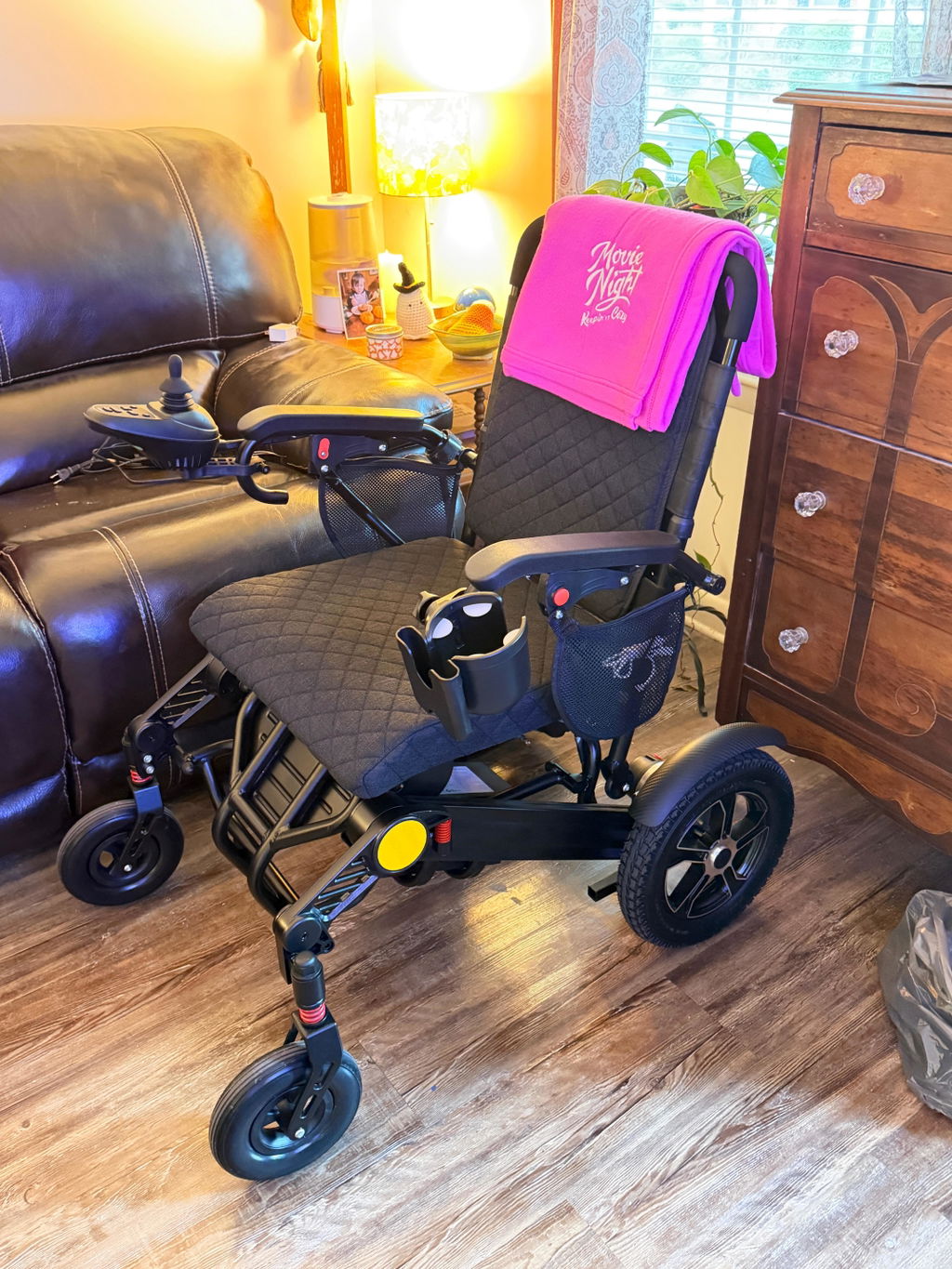
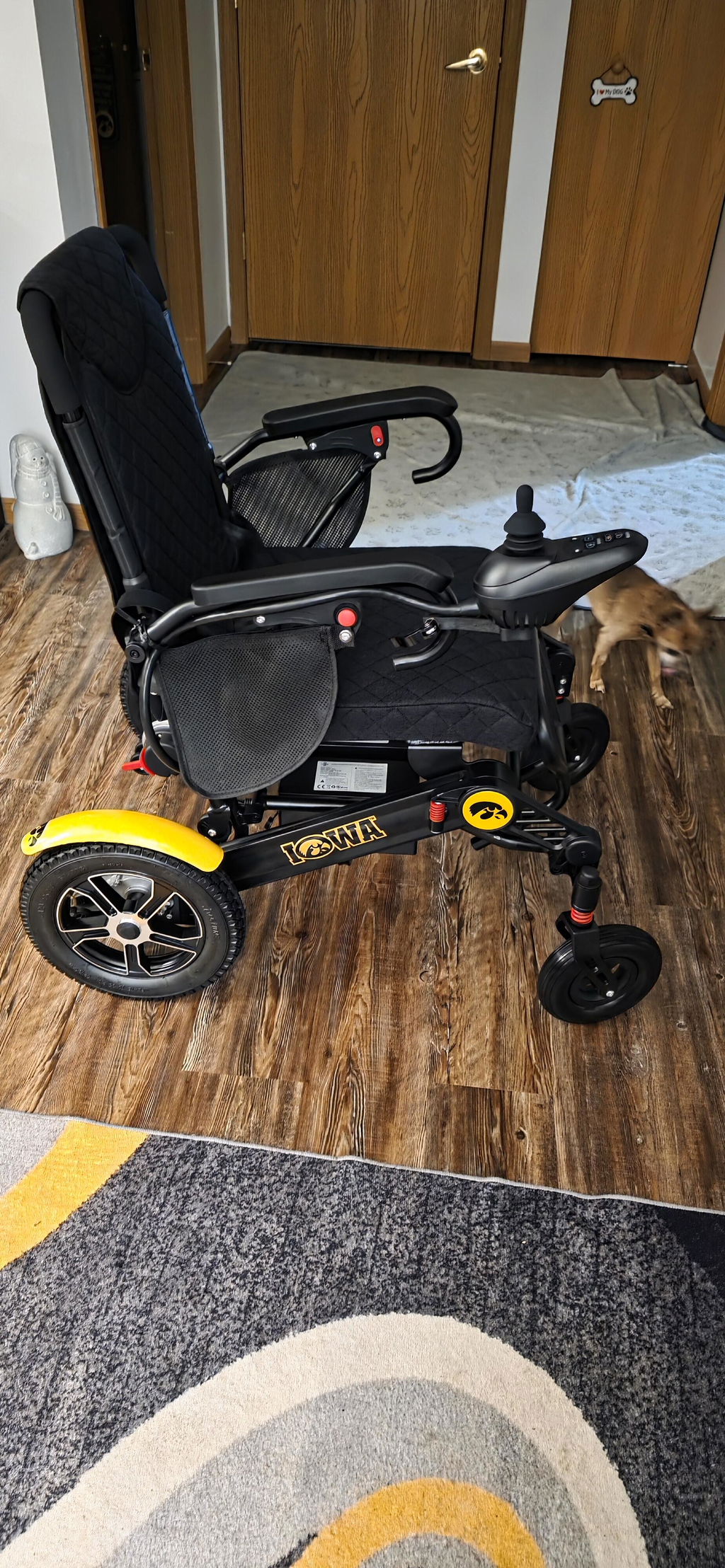
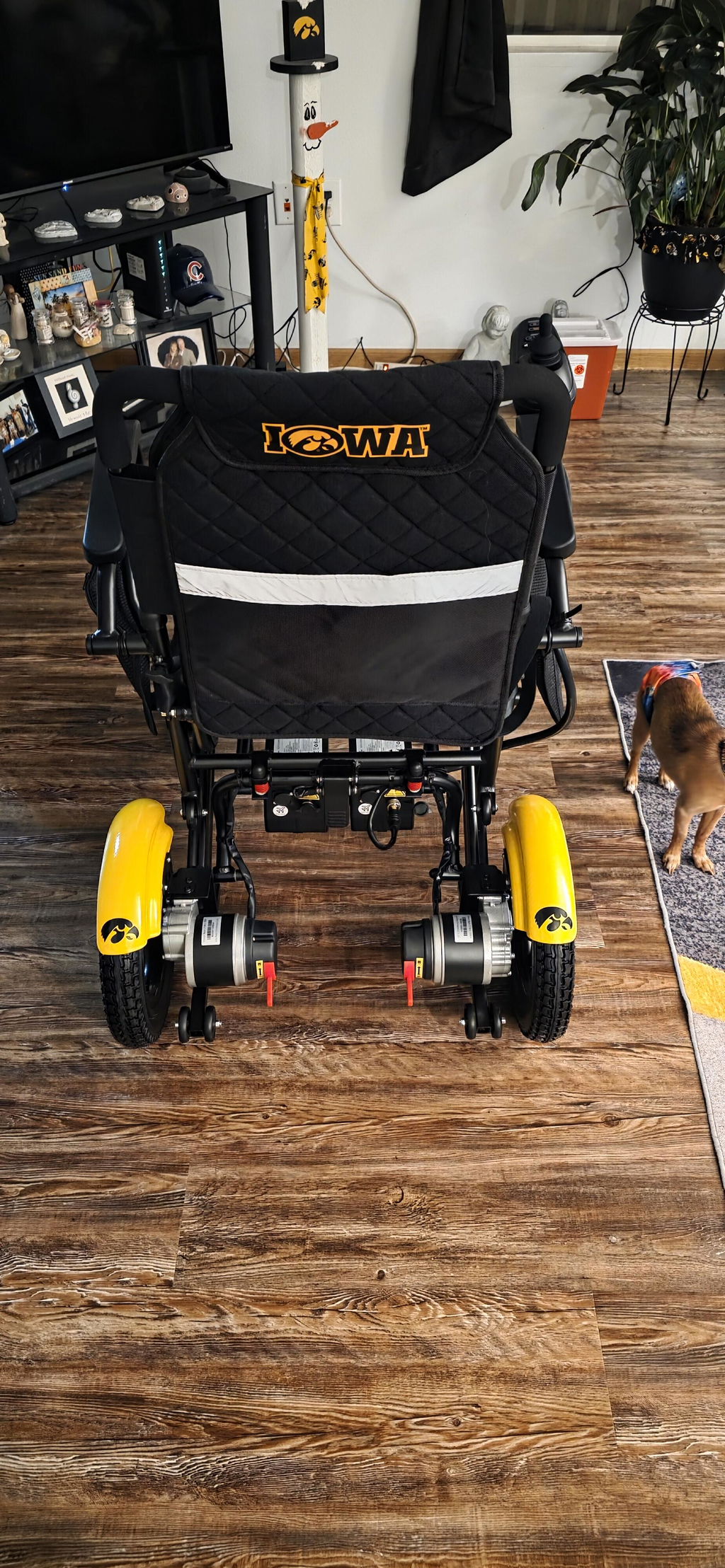
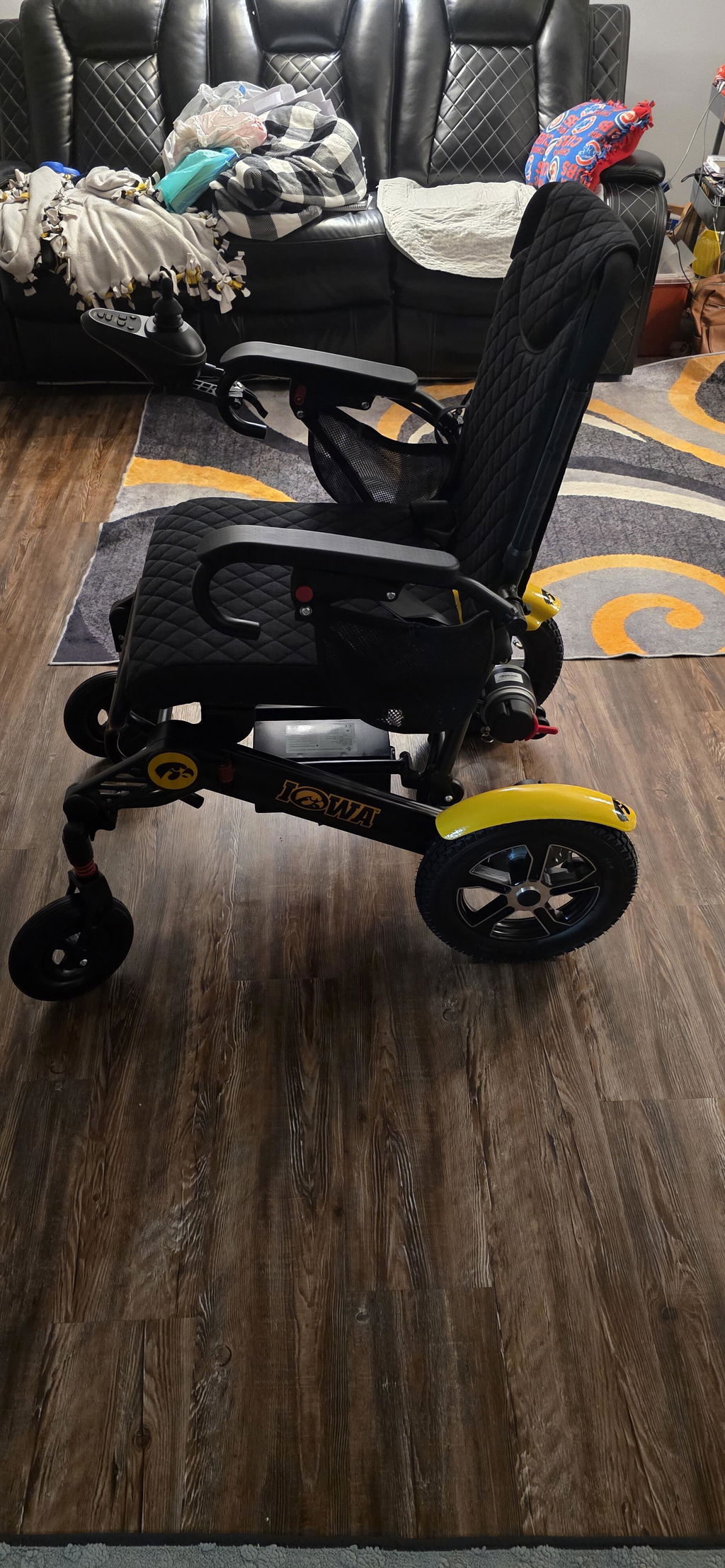
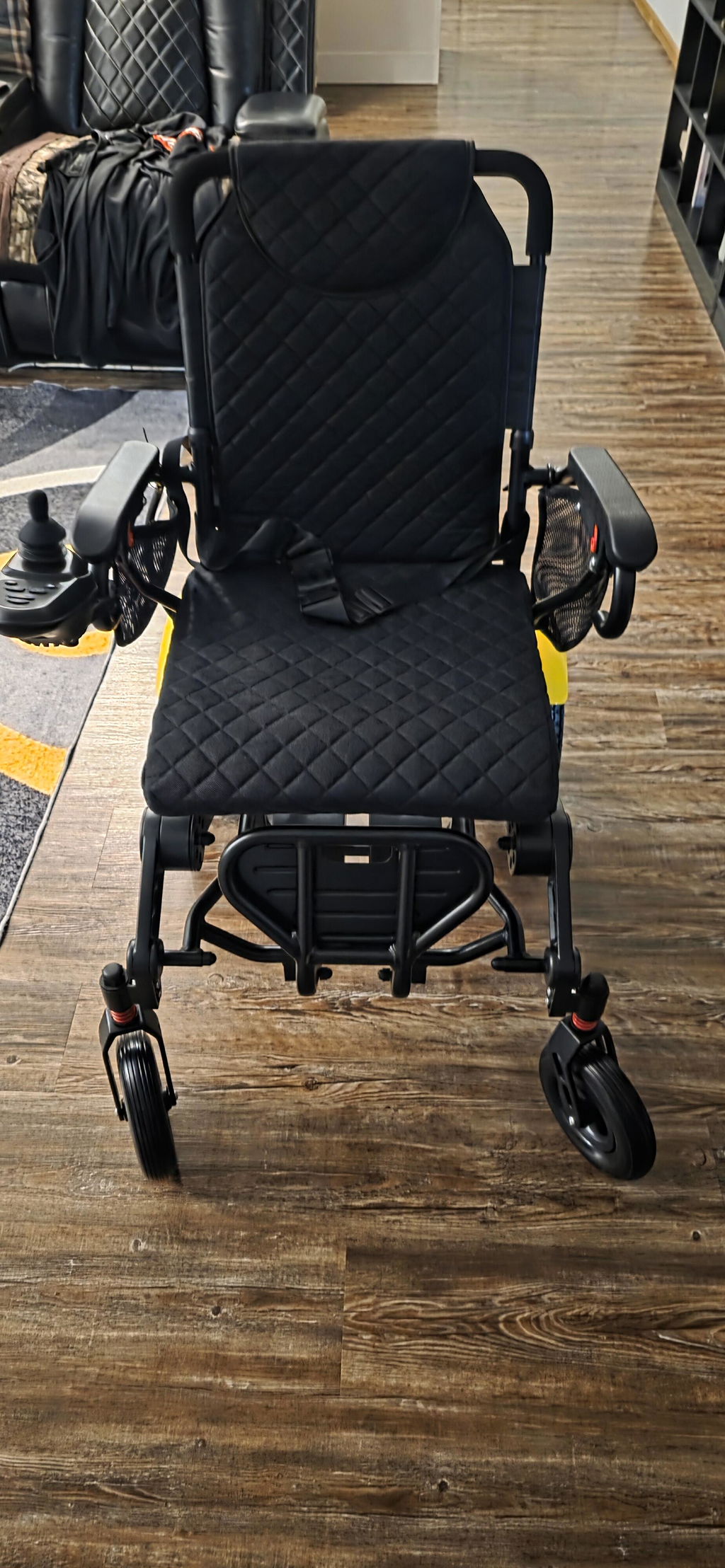
We bought this electric wheelchair for my friend, and she absolutely loves it! It’s sturdy, very well-built, and easy to charge. The two batteries are a great bonus, with each one lasting around 30 miles. She’ll be taking it with her to Spain next month, and we’ve had no problems with the airline. It’s a fantastic chair that has made a real difference in her mobility and independence! I researched and looked for a while before I chose this one, and if you’re looking for a good chair, this one is definitely the one for you. It is very light. It goes pretty fast if you want it to. It has different speeds and it goes over grass, it is very light. folds up with one hand to put in the backseat of the car or the trunk.just an all around good reliable, well made chair, and good company.
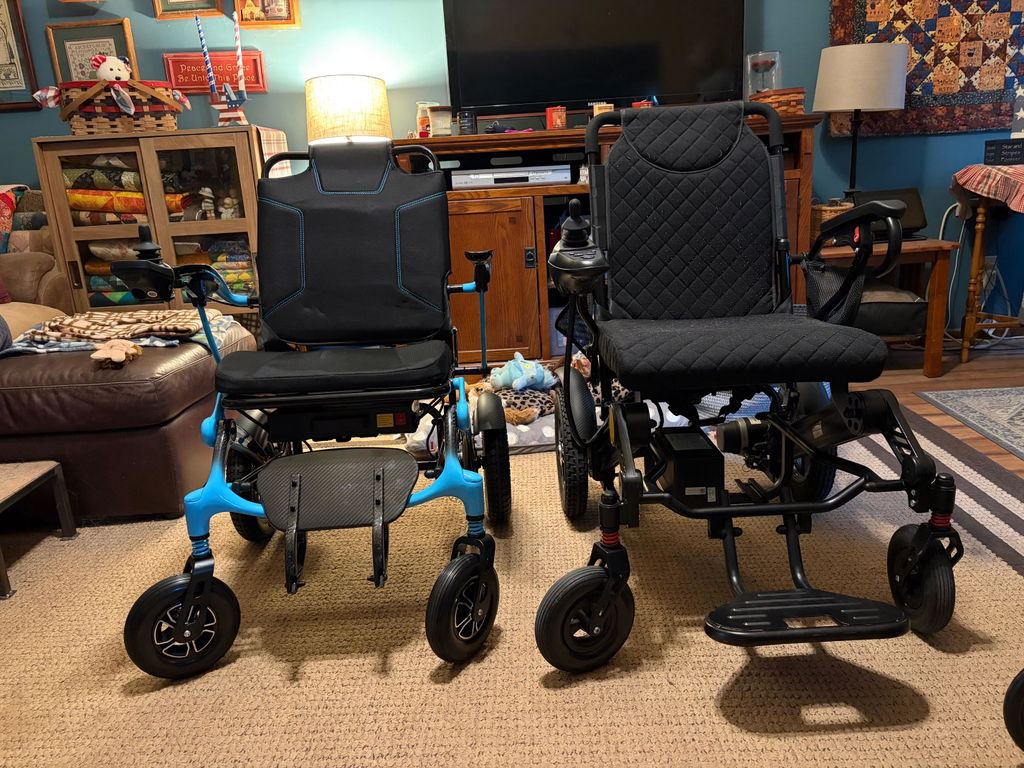
I upgraded to the DX 07 Pro because it is much lighter to load on my own. It is smaller and easier to get through small doorways. The joystick is very sensitive so learning to maneuver took some time. The battery is easier to get in and out for charging. The footrest seems less supportive and sits lower to the ground for some clearance issues. I’ve only had the chair a couple of weeks so I’m still trying it out. Overall I’m pleased with the new chair.
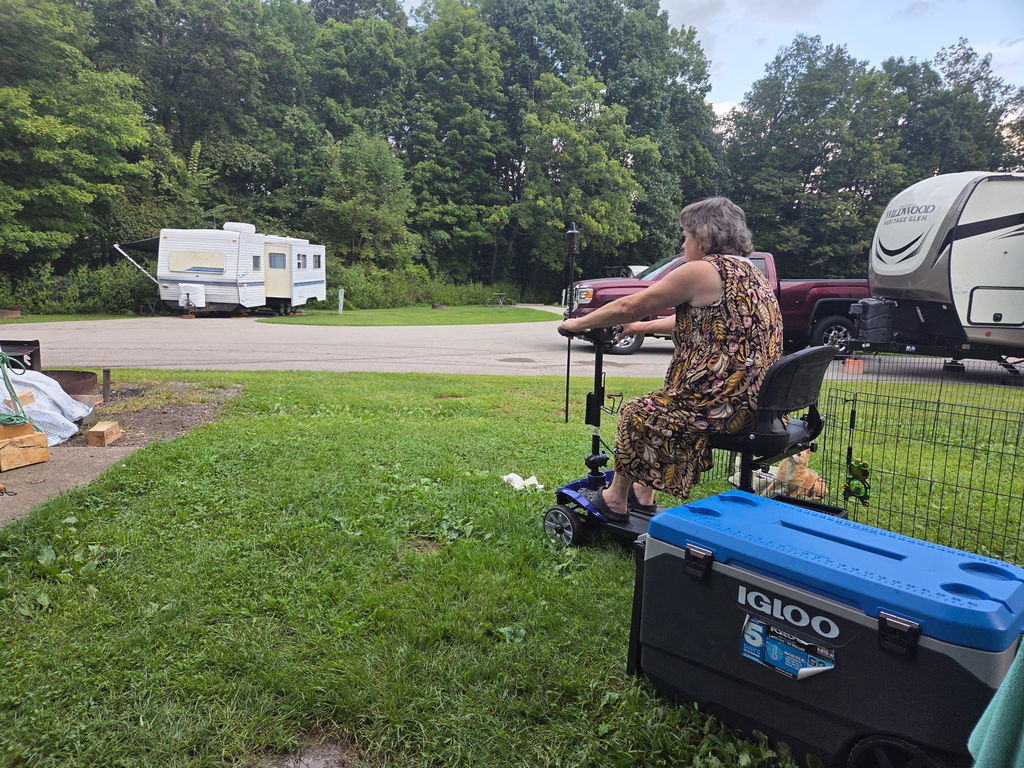
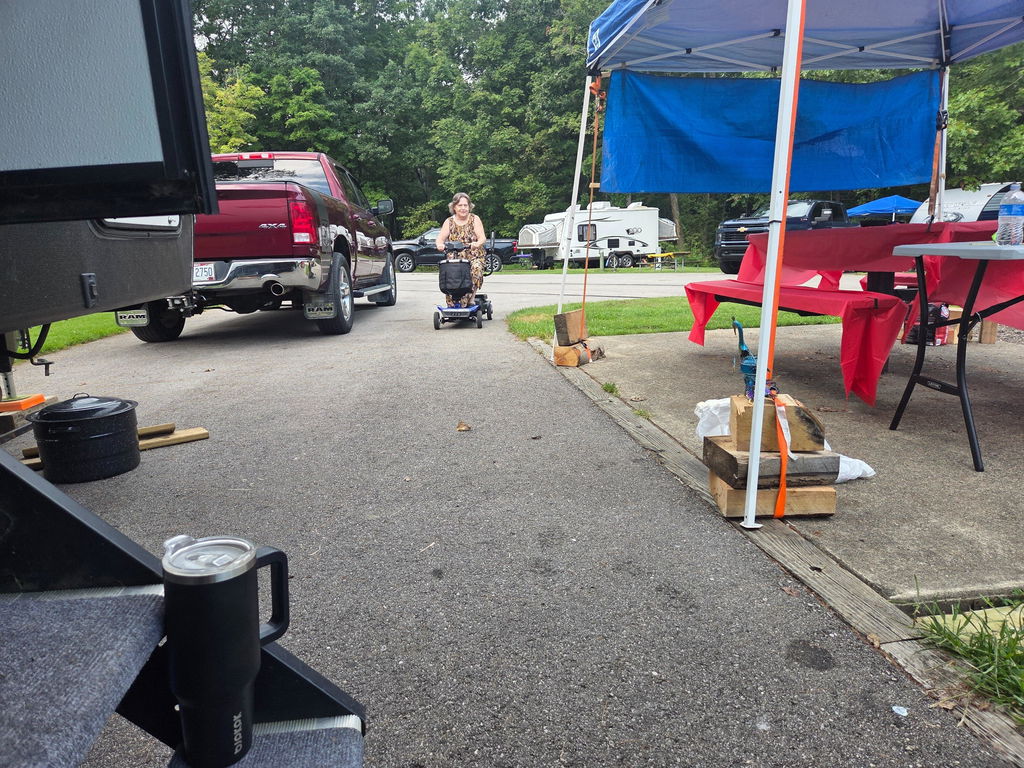
These scooters are really impressive. Easy to maneuver and speed is plenty fast enough. Batteries last a good long time, took camping and used for 5 days and never had to charge. Would buy again, definitely recommend at the price. We are very glad that we purchased these scooters.