How to Turn Off or Restore Voice Prompts on Your KERDOM DX08
Your DX08 may use spoken feedback, including a Bluetooth connection message during caregiver-remote pairing. Follow a mute or restore command only when it is confirmed for the controller on your chair.
Confirm the Setting on Your Controller
The DX08 can announce a Bluetooth connection during caregiver-remote pairing. This article covers spoken prompts only—not the horn, beeps, alarms, or light controls.
Check Before You Change Anything:
- Match the controller: The DX08 manual confirms “Bluetooth connected” during pairing, but does not publish a universal mute or restore sequence. Use a procedure only when it is stated for your controller.
- Do not use the horn: The horn or speaker button alerts people nearby; it is not a voice-prompt setting.
- Leave alerts alone: Do not try button combinations to silence fault alarms or warnings. Check the display before driving.
Turn Voice Prompts Off
Use these steps only when your controller instructions or KERDOM Support confirm a voice-prompt mute feature. Keep the chair still on firm, level ground.
For a Confirmed Voice-Prompt Setting:
- Center the joystick: Stop the chair and return the joystick to neutral.
- Restart the controller: Turn it fully off, then on again as directed for your controller.
- Use the confirmed command: If your instructions specifically say to hold “+” to mute prompts, do so after restart. Do not assume this applies to every DX08 controller.
- Wait for confirmation: If there is no documented confirmation or the display shows a warning, stop; do not try other combinations.
Restore Voice Prompts
If you muted prompts through a confirmed setting, use the same approved control method to turn them back on.
To Re-Enable a Confirmed Setting:
- Restart first: Turn the controller off, then on with the joystick centered.
- Repeat the approved command: Use the command identified for your controller. Hold “+” only when it is specifically identified as the voice-prompt control.
- Verify before riding: Wait for the documented confirmation, then check the display and selected speed. If prompts do not return, contact KERDOM Support.
Need Help Identifying Your Controller?
Controller layouts can vary by configuration. A quick check can prevent an unsupported setting change.
Share These Details:
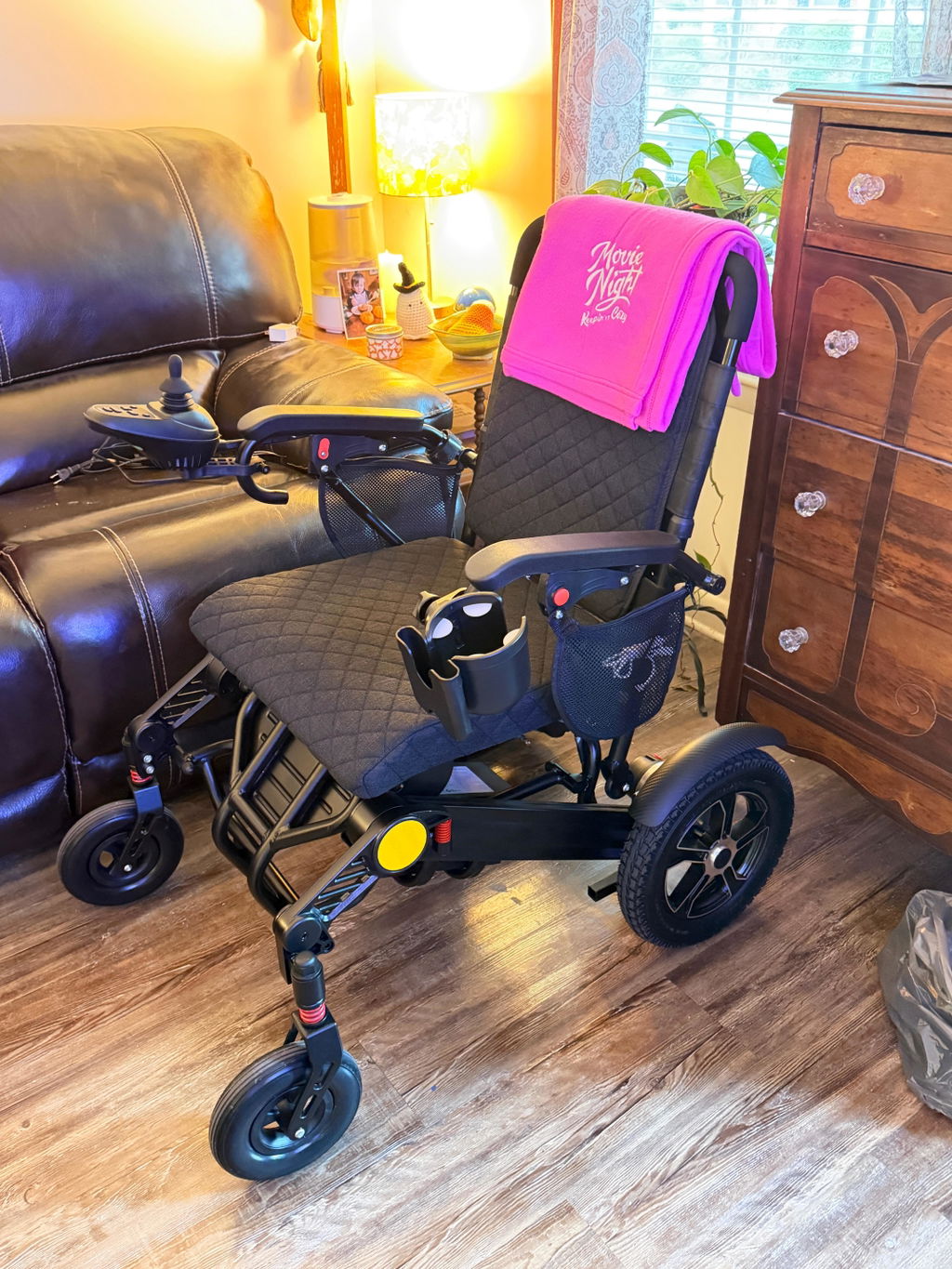
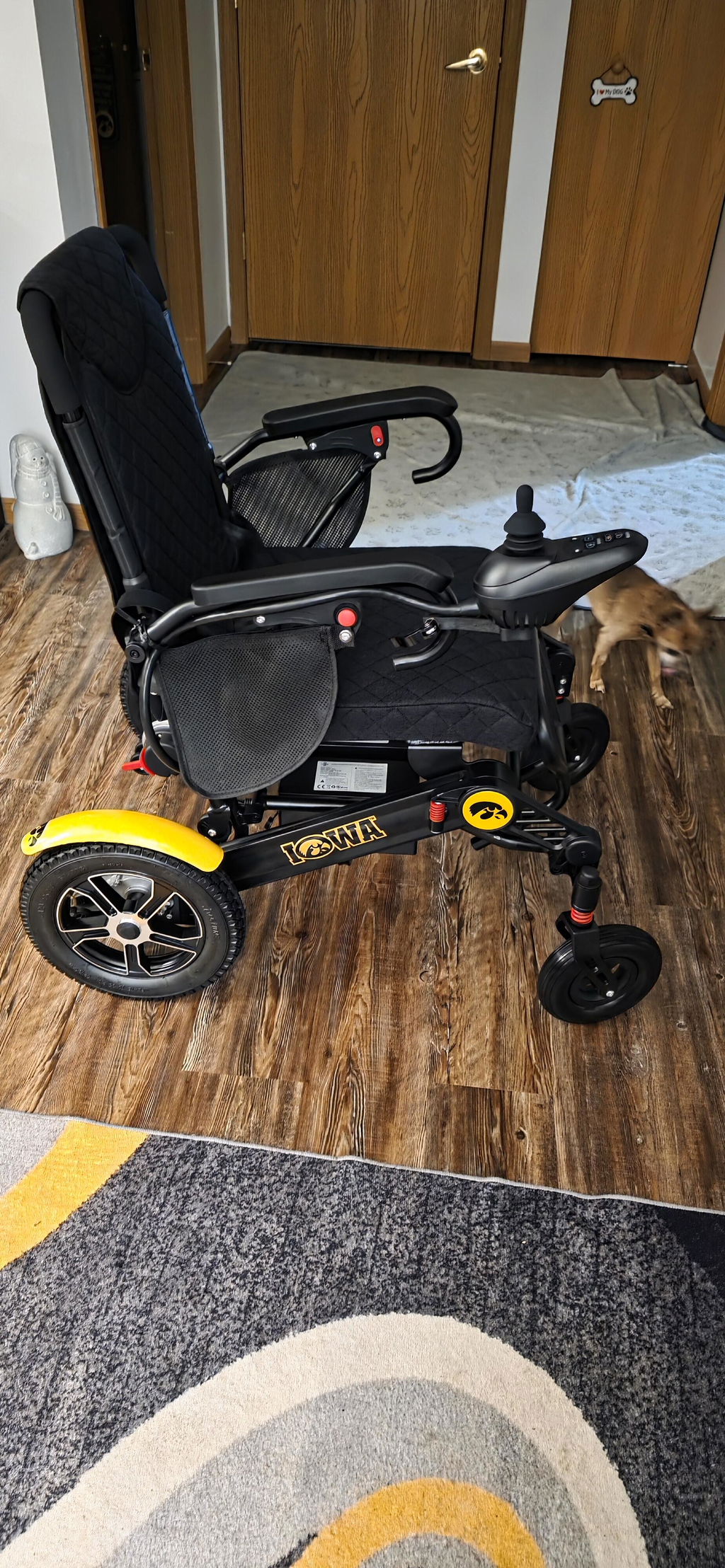
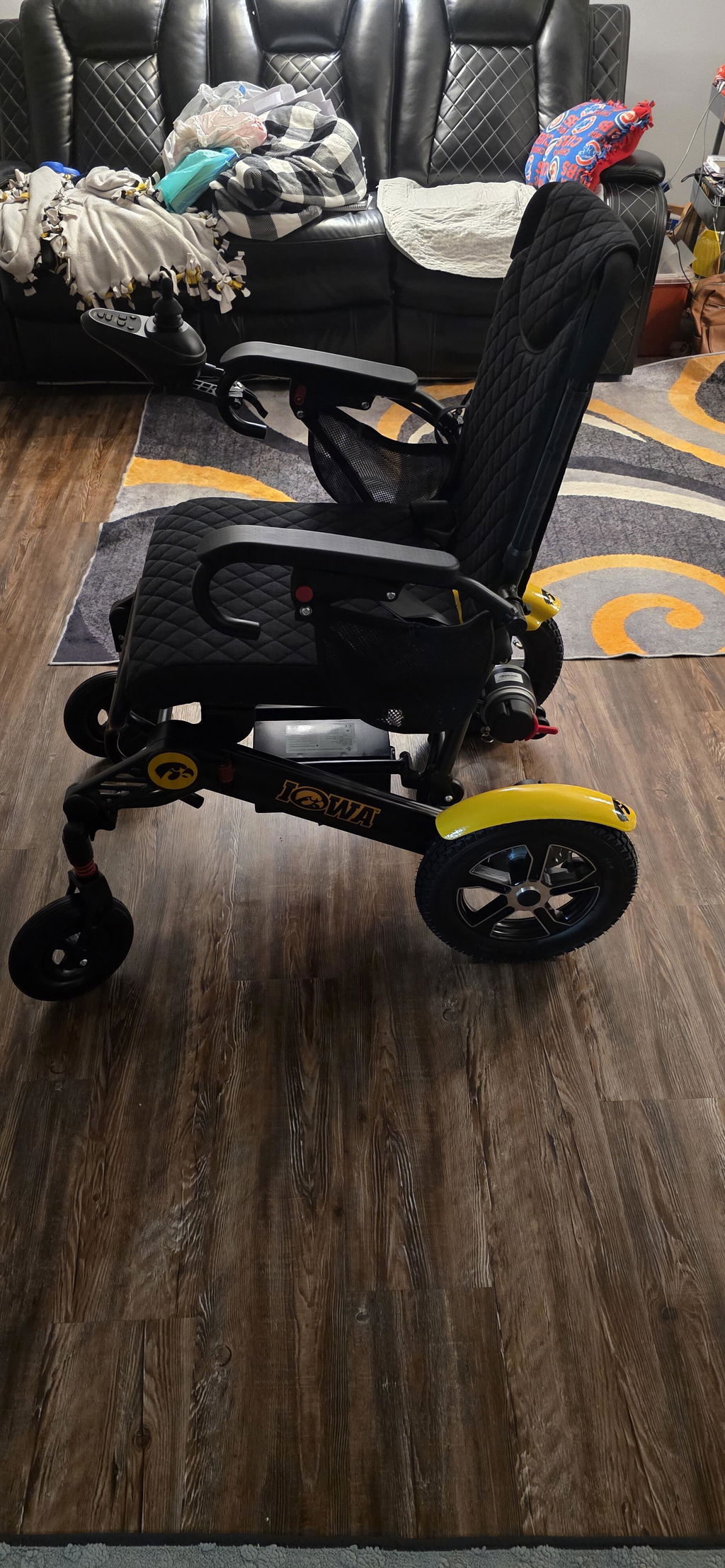
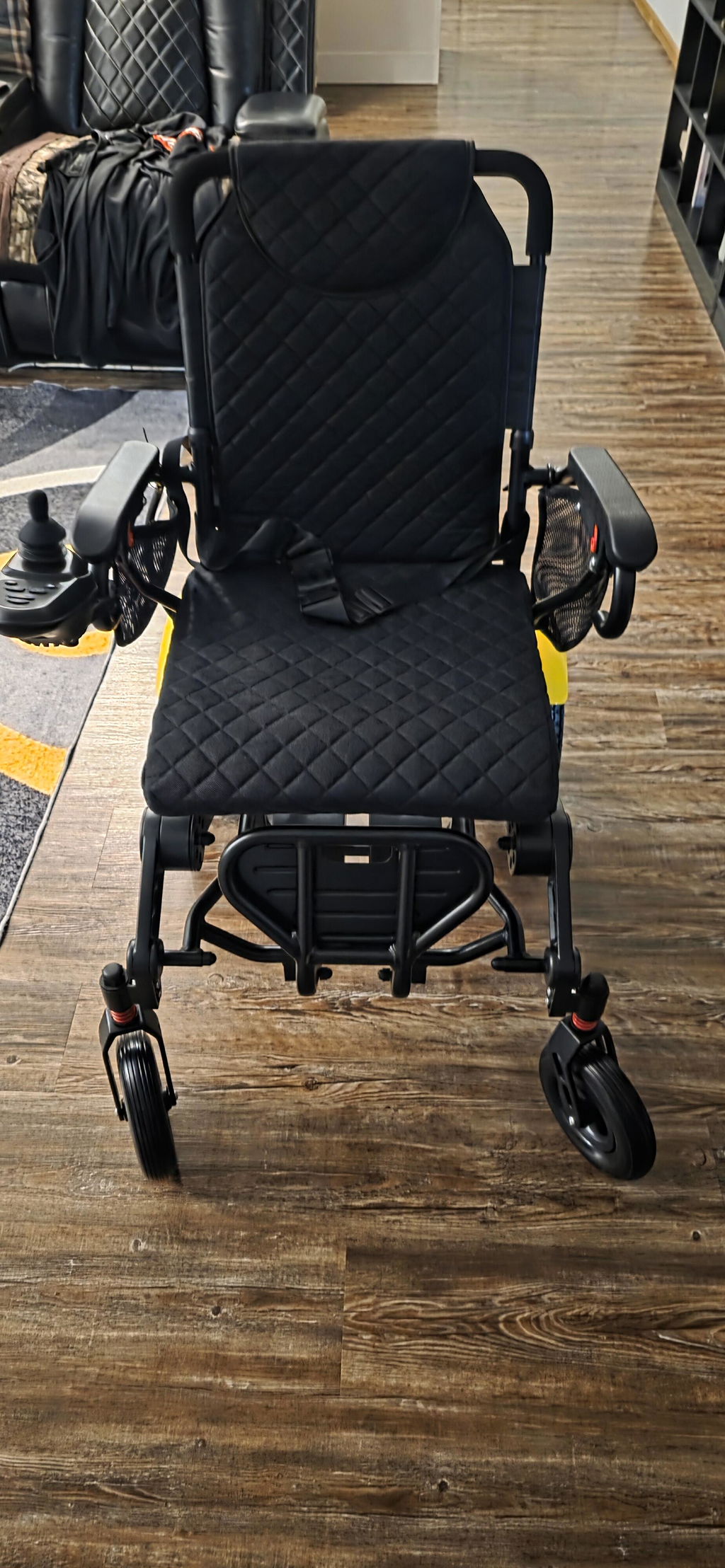
- Controller photo: Send a clear photo of the display and buttons, with the chair off.
- Chair details: Include your DX08 order number and model label or serial number.
- What you hear: Describe when the message occurs and whether a warning code appears.
Important: A horn, normal startup or shutdown beep, and diagnostic alarm are not spoken voice prompts. Do not disable or ignore safety warnings, fault codes, or recurring alarms.
Need help? Email support@kerdom.com with your order number and a clear photo or short video, or contact KERDOM Support.