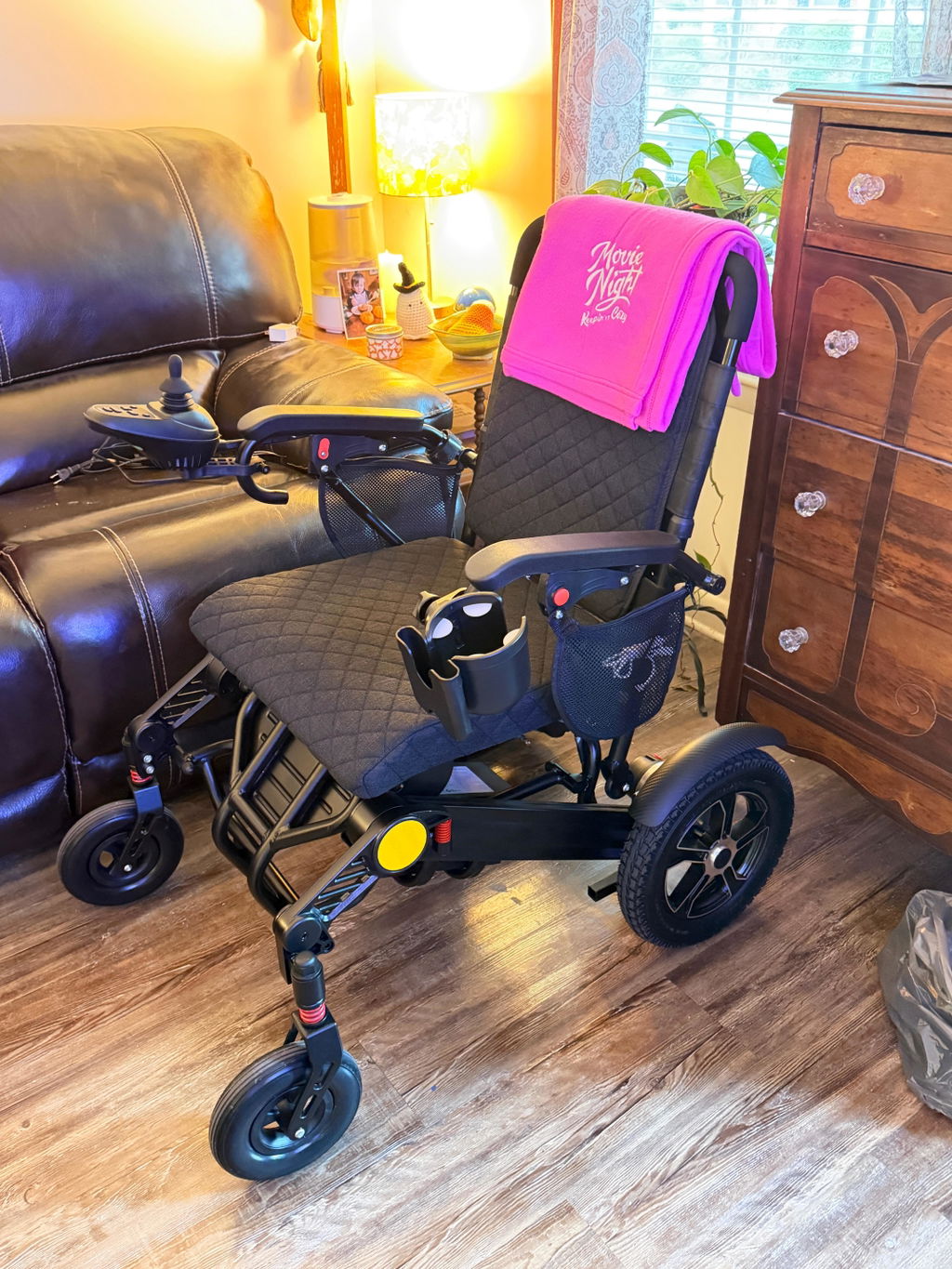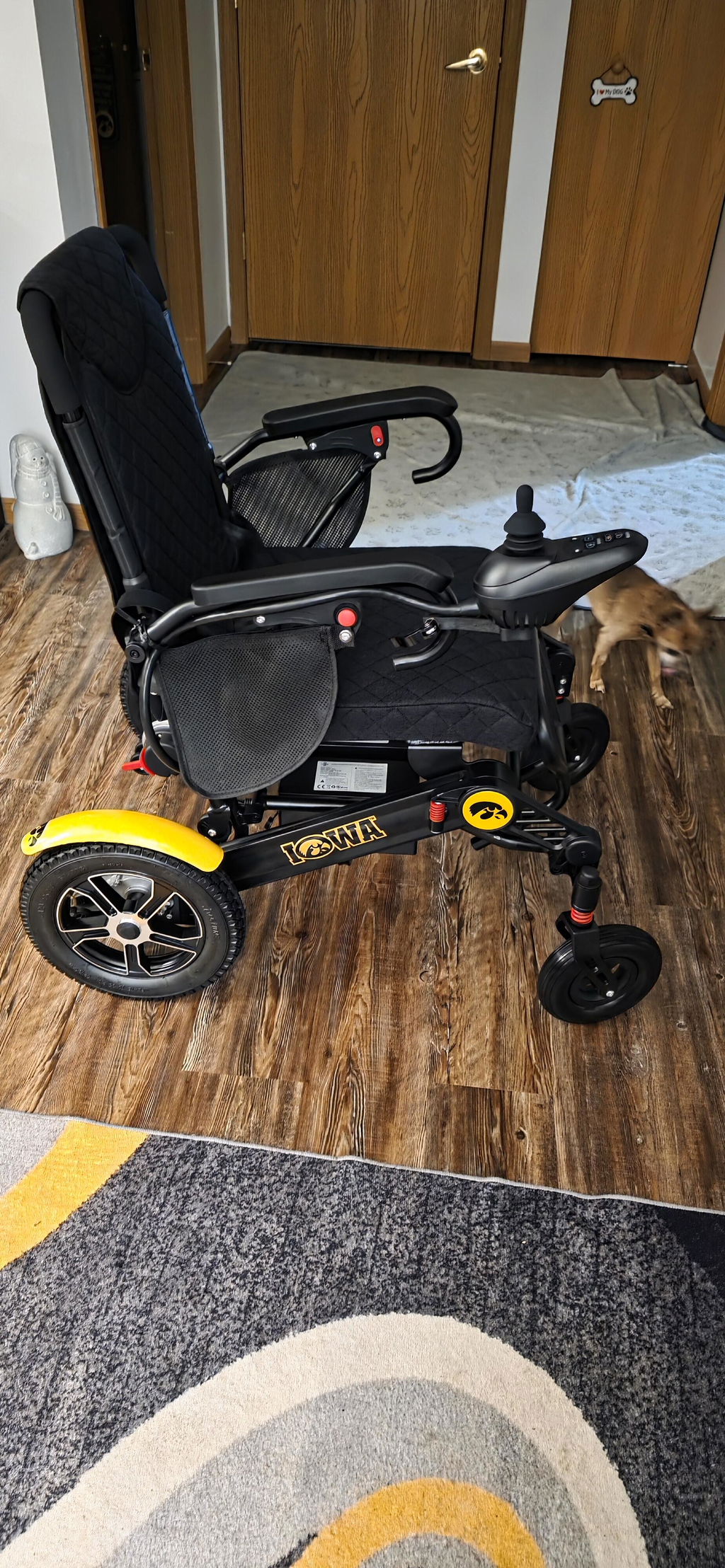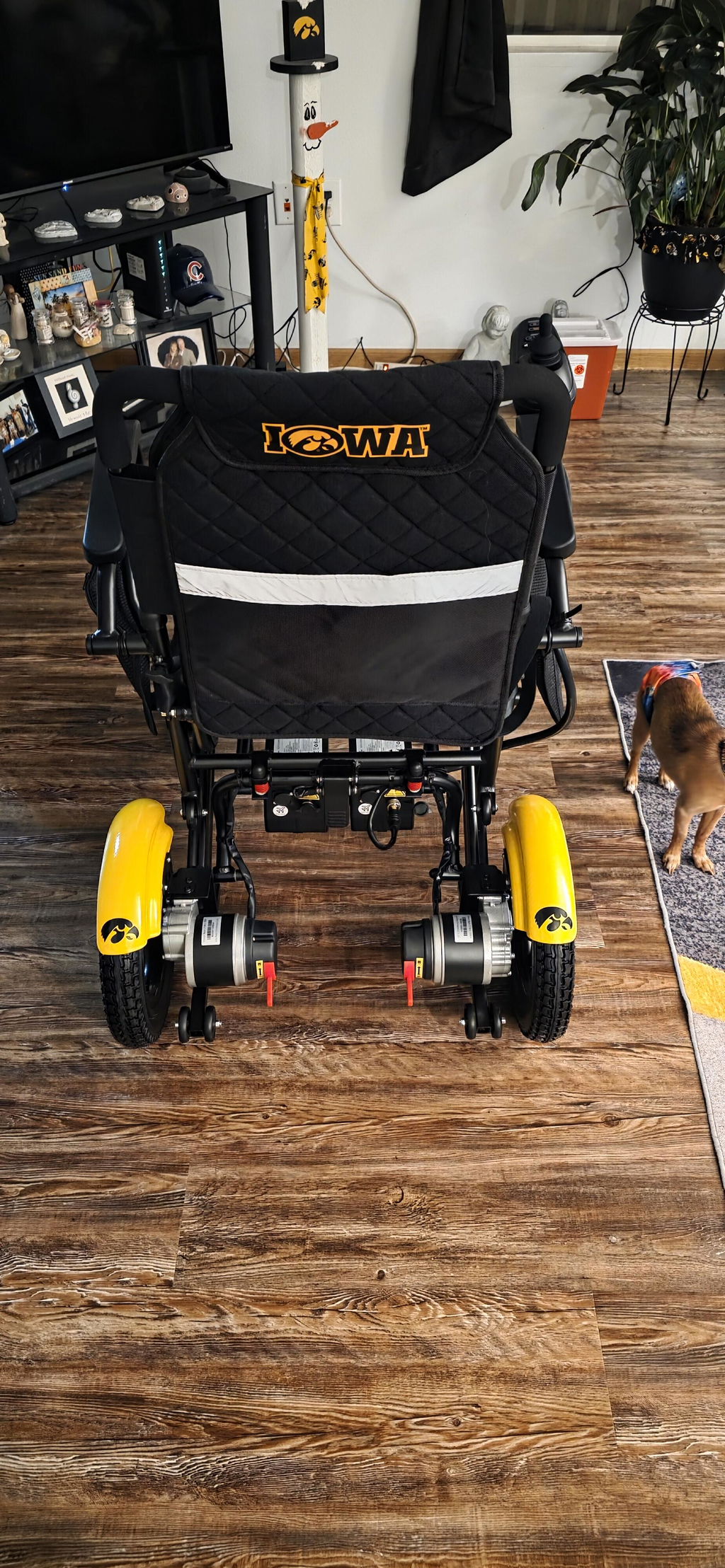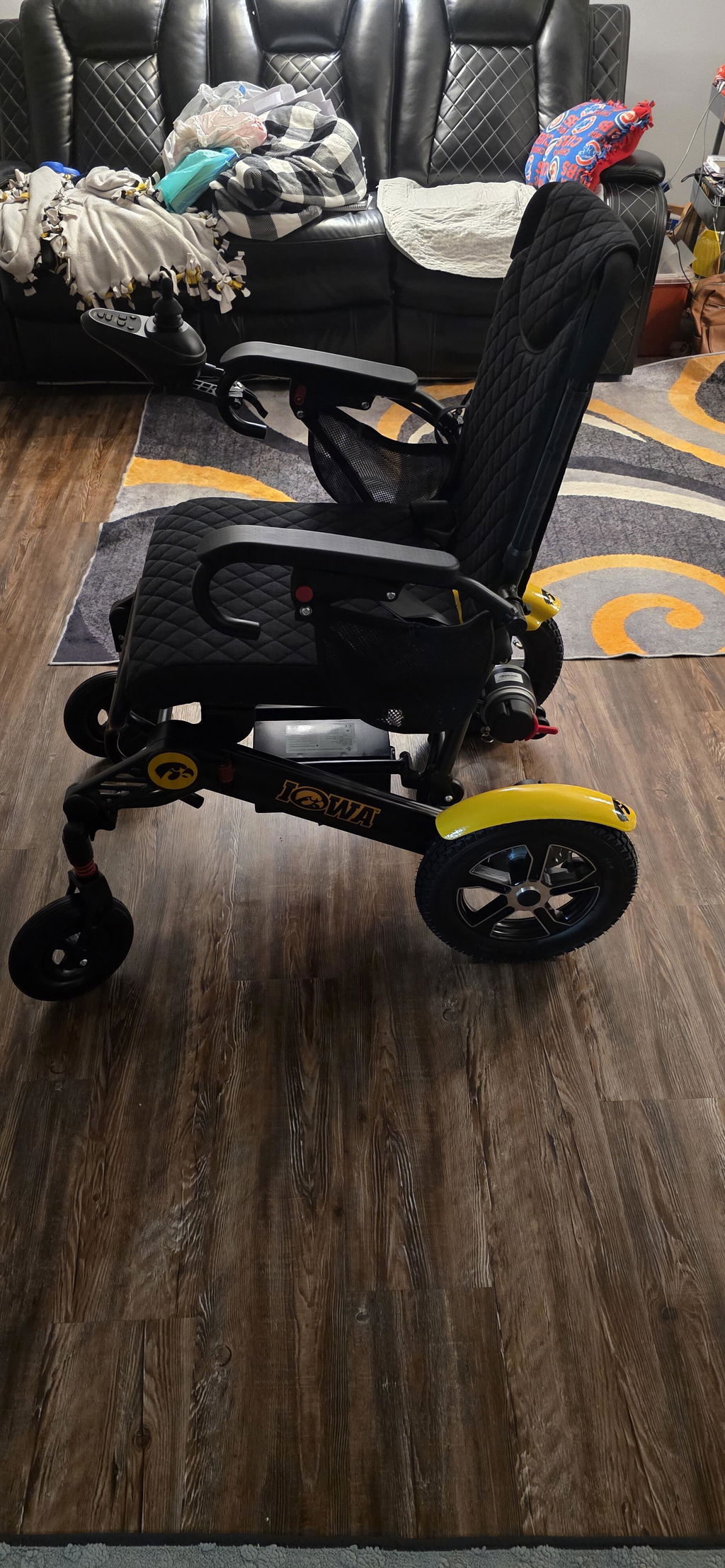
KERDOM DX07 Charging Guide
Keep your DX07 ready for your next outing with a simple charging routine. Your battery comes partially charged, so we recommend a full charge before your first big trip.
Two Ways to Charge Your Battery
Charge with the battery on the chair, or remove it to charge somewhere more convenient. Choose whichever method fits your daily routine.
Choose Your Method:
- On-Board: Leave the battery securely installed in the chair. Connect the charger to the charging port directly under your joystick controller.
- Off-Board: Switch the joystick controller off and remove the battery as shown in your DX07 manual. Connect the charger directly to the battery’s charging port.
Most Important Step: For both methods, the battery power switch must stay ON ("I" position) throughout charging, or the battery will not charge. Keep the joystick controller switched off—these are two separate controls.
Connect, Charge & Disconnect
Use only the charger supplied or specifically approved for your DX07. Choose a dry, ventilated place away from water and heat.
Follow These Steps:
- Prepare: Keep the joystick controller off and the battery switch ON ("I"). If charging on the chair, check that the battery is securely seated.
- Connect firmly: Insert the charger plug fully into the correct charging port. Check every connection before switching on the wall outlet or connecting the charger to wall power.
- Let it charge: Check the charger’s indicator light. Do not drive the chair while charging.
- Disconnect safely: When charging is complete, disconnect the charger from wall power first, then unplug it from the chair or battery.
Safety First: Do not charge a wet, damaged, swollen or unusually hot battery. Stop charging if you notice unusual heat, odor or other signs of damage, and contact KERDOM before using it again.
Charger Lights & Charging Time
The charger indicator helps you check progress. Allow approximately 4–8 hours for a full charge, depending on the battery configuration and remaining charge.
What the Lights Mean:
- Red / Orange: Charging is in progress on the supplied charger.
- Green: Normally indicates a full charge when the battery switch is ON and all connections are secure. If it turns green immediately but the battery is low, check the switch and connections first.
- Confirm completion: Follow the indicator and instructions supplied with your battery and charger rather than relying only on a timer.
Not Charging? Start with These Checks
A loose connection or an overlooked switch can interrupt charging. Check these items before trying again.
Your Quick Checklist:
- Battery switch: Confirm it is fully in the ON ("I") position—not OFF ("O").
- Battery seating: For on-board charging, check that the battery is securely installed and its connections are properly engaged.
- Charging plug: Check that it is fully inserted into the correct charging port. A USB outlet is not a battery-charging inlet.
- Wall outlet: Check the outlet switch, if present, or try another working outlet. Disconnect wall power before adjusting the charging connections.
Need a Helping Hand?
If the battery still will not charge, email support@kerdom.com. A few clear photos or a short video can help us understand what you are seeing.
Helpful Details to Share:
- Charger indicator: Show the light and the charging connections.
- Battery switch: Show its current position and how the battery is installed, if charging on the chair.
- Controller display: After disconnecting the charger, show any battery reading or warning displayed when the chair is switched on.
- Order information: Include your order number and a clear photo of the battery label.
Visit the KERDOM User Manuals page for your model’s instructions, or contact our support team for help.