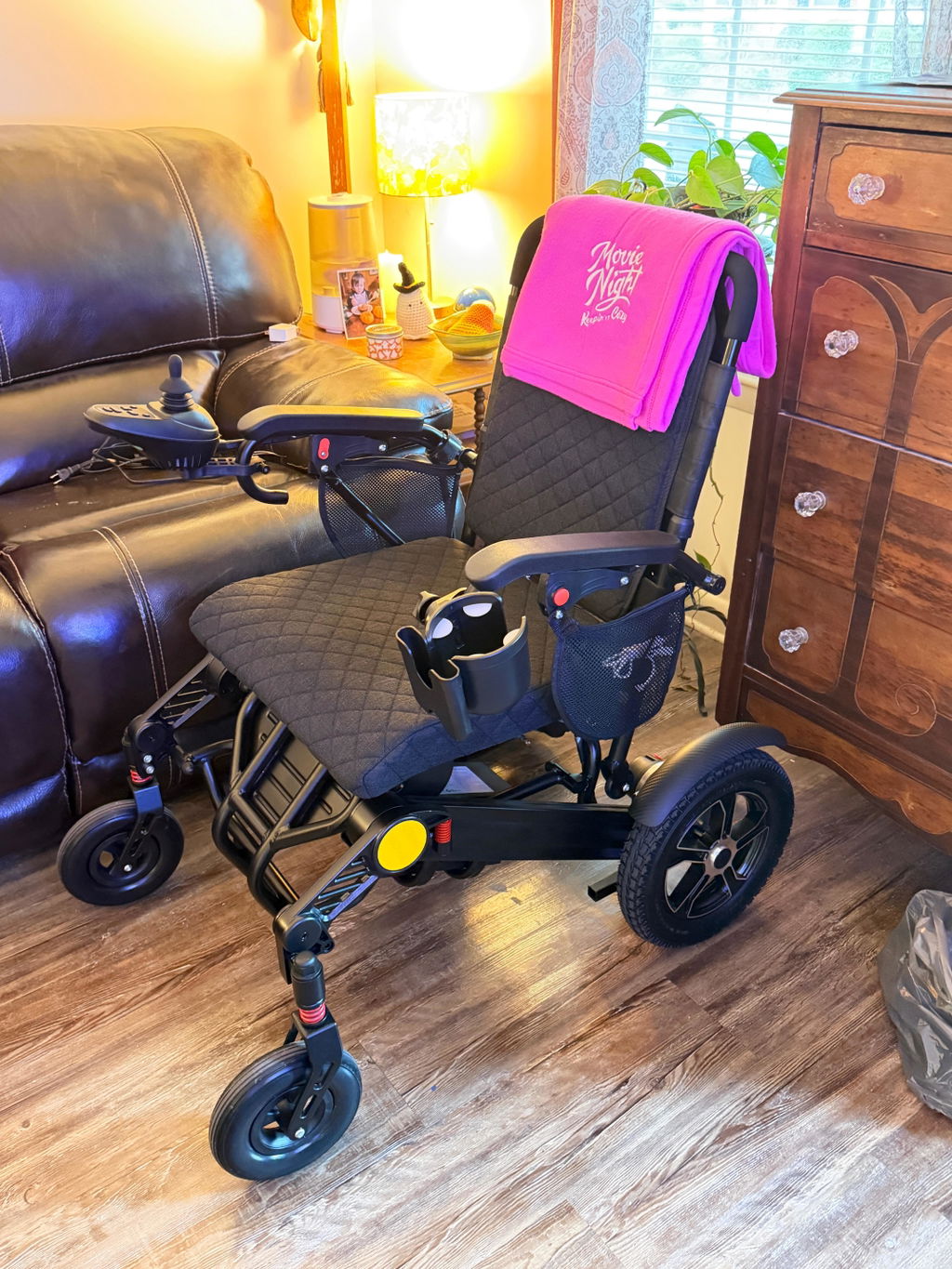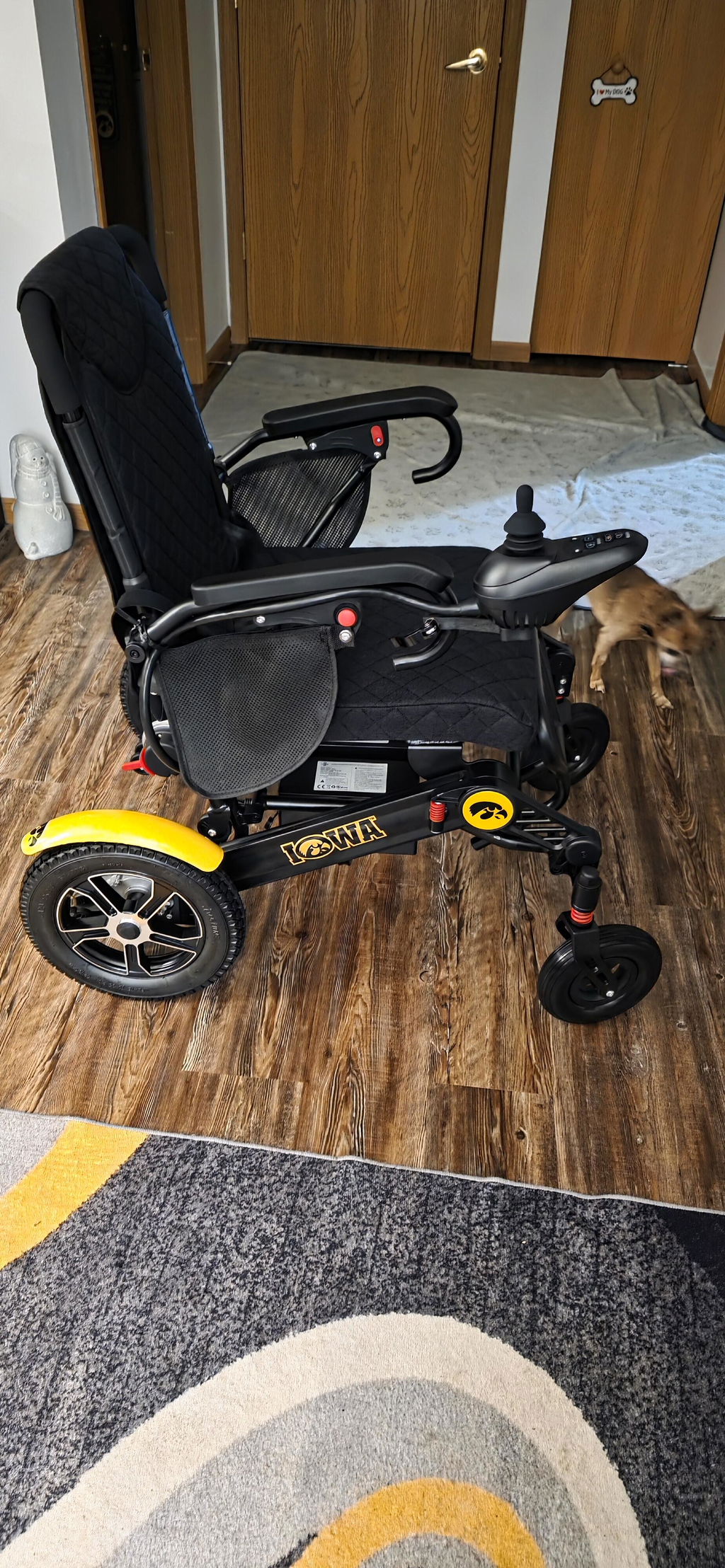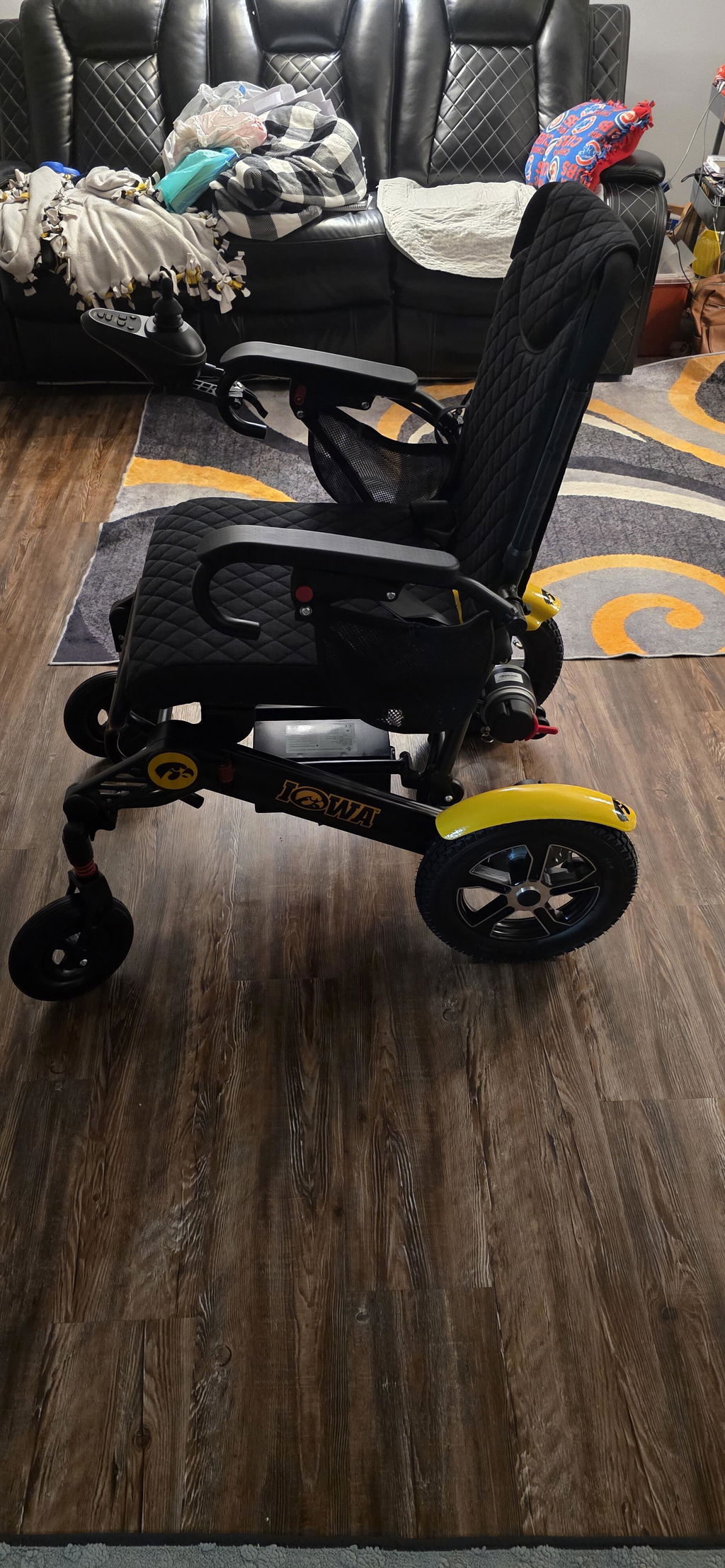
How to Adjust KERDOM DX08 Joystick Sensitivity
Use a lower speed setting first if your DX08 feels too responsive. A separate sensitivity adjustment is available only on compatible controller configurations that show the P1/P5 menu described below.
Start with the Speed Setting
The DX08 has five adjustable driving-speed levels. Lowering the maximum speed may make joystick control easier to manage.
For Every DX08 Controller:
- Park first: Stop on firm, level ground and make sure the joystick is centered before changing a setting.
- Use the speed buttons: Use the controller’s speed decrease button to select a lower maximum speed. The manual recommends a low speed for first-time users and says the gear cannot be changed while traveling.
- Try gradual input: Move the joystick slowly. The farther the joystick is moved, the more speed it commands within the selected speed level.
Important compatibility check: The DX08 manual documents speed adjustment, but it does not document a P1/P5 sensitivity menu. Use the menu steps below only if your own controller displays P1 after the stated button combination. Do not try the sequence on a controller with different labels, a different display, or no P1 screen.
Use the Sensitivity Menu Only If It Appears
A separate sensitivity menu is not confirmed for every DX08 configuration. Continue only when the display provides the required P1 check.
For a Controller That Displays P1:
- Enter settings mode: With the chair stopped, press and hold Power and Minus (–) together until a beep sounds. Continue only if the display shows P1.
- Find P5: Press the Horn button repeatedly until P5 appears. On compatible controllers, P5 is the sensitivity setting.
- Change the response: Press Plus (+) to increase sensitivity for a more responsive feel, or Minus (–) to decrease sensitivity for a slower, smoother response.
Save and Test Carefully
A small change is easier to evaluate than several changes at once. Test any new setting in an open, level area before using the chair in tight or busy spaces.
Finish the Adjustment:
- Save: Press the Power button once to confirm the P5 setting on a compatible controller.
- Test at a low speed: Select a low displayed speed level, then practice gentle starts, stops, and wide turns with clear space around the chair.
- Change only sensitivity: Change only the P5 sensitivity setting. If the chair moves unexpectedly or does not stop normally, stop using it and contact KERDOM Support.
When to Contact KERDOM
A controller that does not match these instructions needs model-specific guidance rather than trial and error.
Please Ask for Help If:
- P1 or P5 does not appear: Use the normal speed buttons only and contact support with a clear photo of the controller display and buttons.
- Control feels abnormal: Stop using the chair if it jerks, moves while the joystick is centered, pulls unexpectedly, or does not stop normally.
Need help? Email support@kerdom.com with your order number and a clear photo or short video, or contact KERDOM Support.