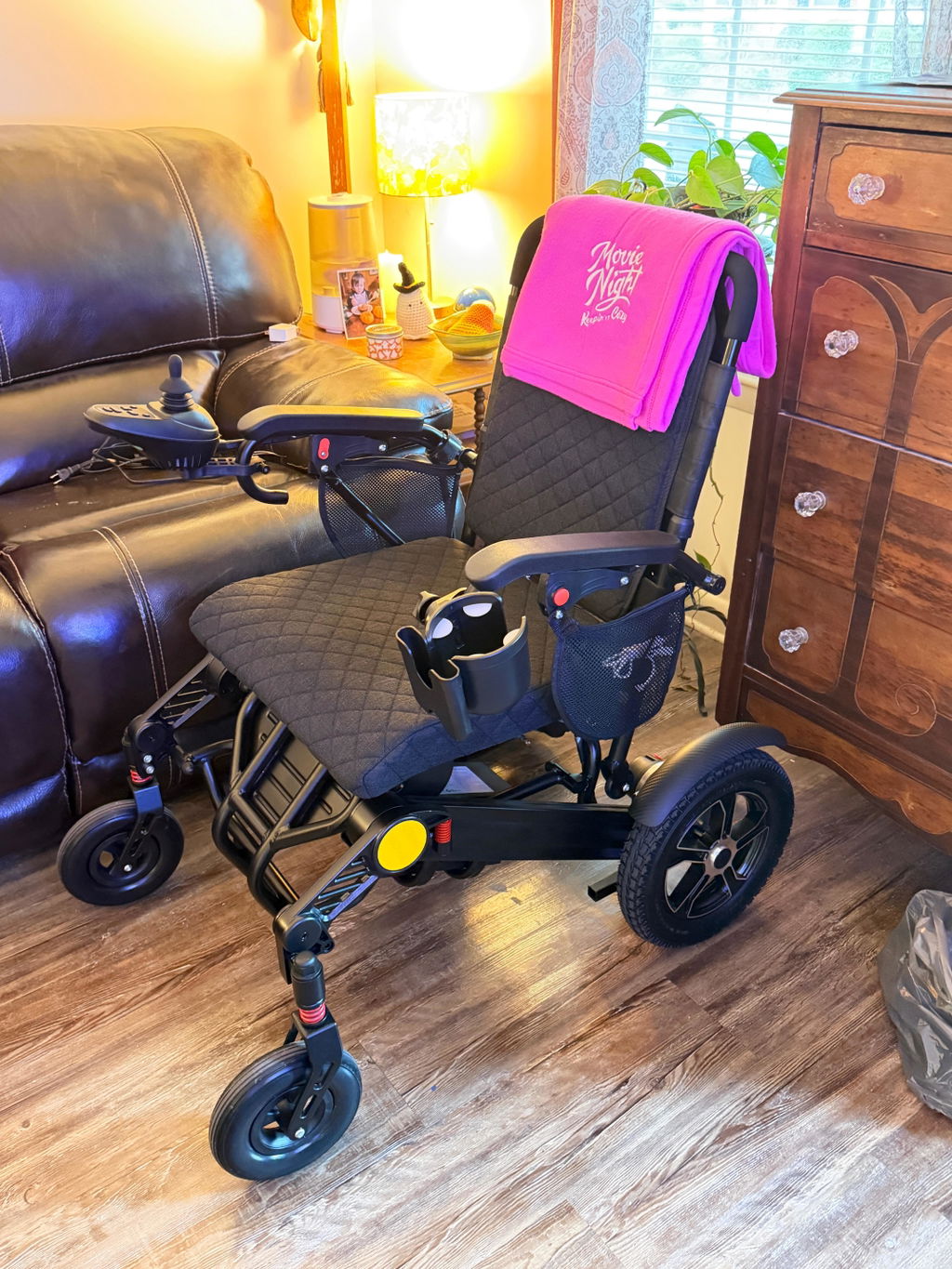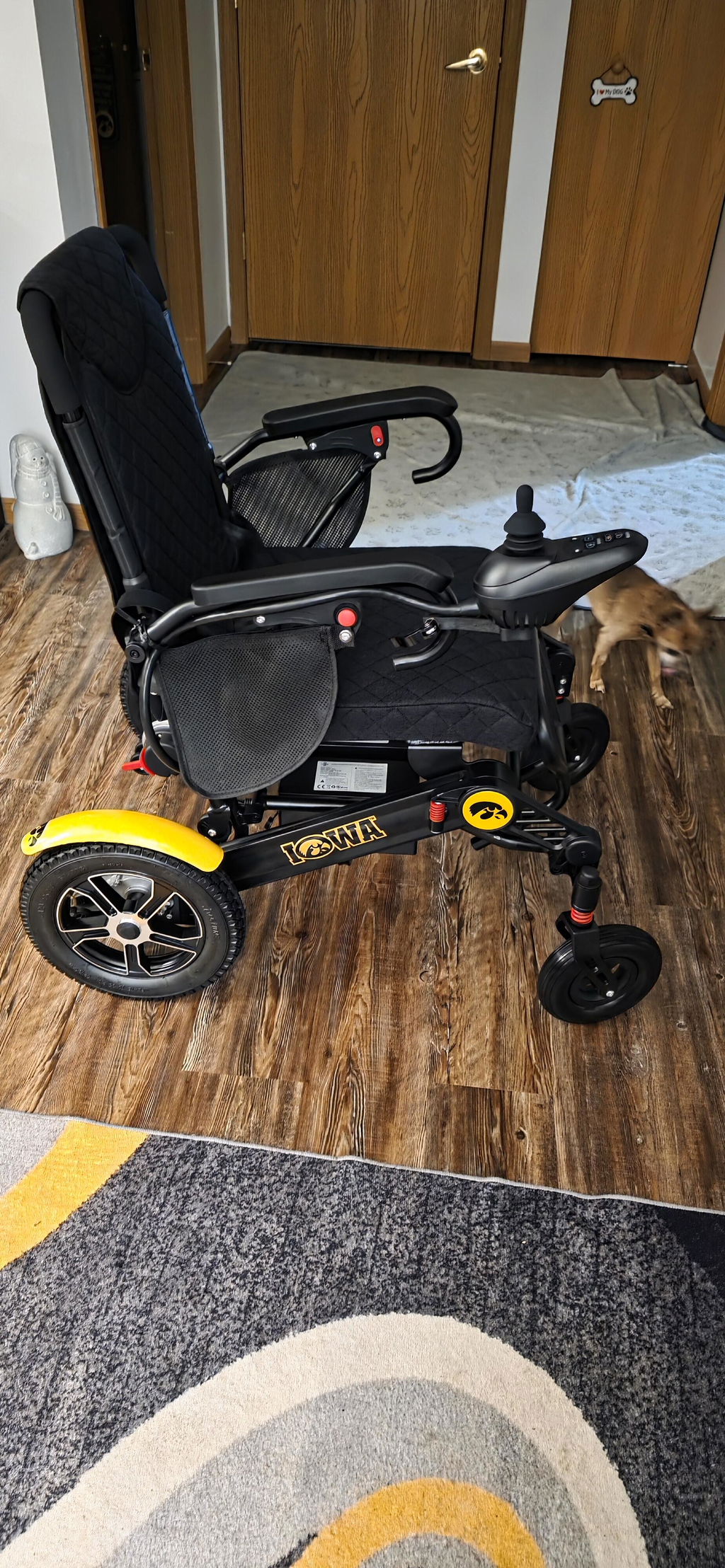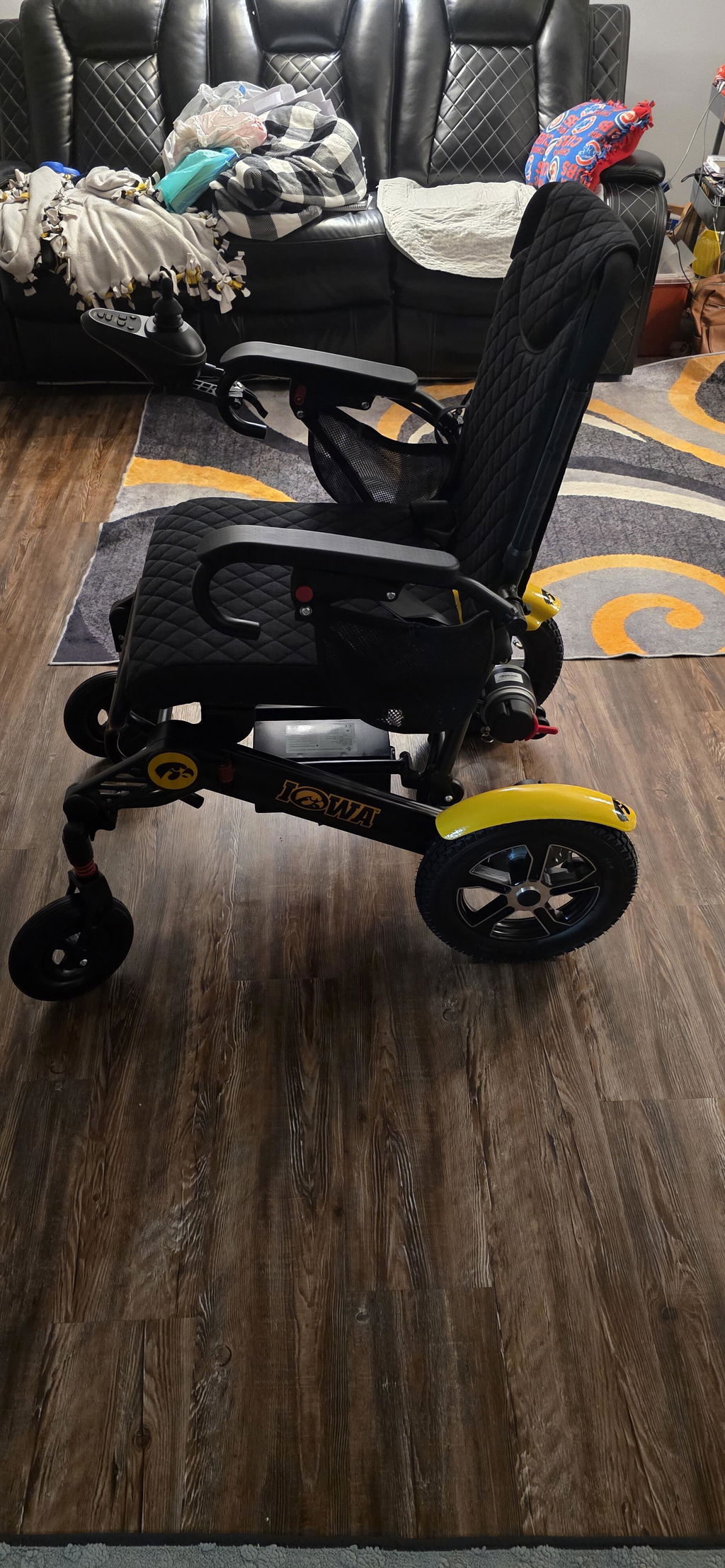
How to Turn Off Voice Prompts on Your KERDOM DX07
You can choose a quieter experience by muting your DX07 controller’s spoken announcements. Here is how to switch them off and restore them when needed.
Turn Off Voice Prompts
You can mute spoken announcements when you prefer a quieter experience. Make the change while the chair is stationary on firm, level ground.
Follow These Steps:
- Switch off: Turn the joystick controller completely off.
- Switch on: Turn it back on with the joystick centered.
- Hold the Plus button: Press and hold the “+” button for more than 5 seconds on the joystick controller.
- Wait for confirmation: Wait for the voice confirmation that spoken prompts have been muted and for the controller to return to its normal display.
What Changes After Muting?
The controller’s spoken announcements will be turned off. Continue to use the display to check your chair’s status.
Keep These Points in Mind:
- Check the display: Monitor the battery level, selected speed and any visible warnings.
- Check speed before moving: Confirm the selected speed is suitable for your surroundings before starting your next ride.
Turn Voice Prompts Back On
If you would like spoken announcements again, repeat the same sequence.
To Restore Voice Prompts:
- Restart the controller: Turn it completely off, then back on with the joystick centered.
- Hold “+” again: Keep holding until the voice confirmation indicates that spoken prompts are enabled again.
If there is no confirmation: Stop rather than trying other button combinations. Check your controller instructions or contact our team for help. Muting voice prompts is not a reason to ignore display warnings.
Need help? Email support@kerdom.com with your order number and a clear photo of your controller display and buttons, or contact KERDOM Support.