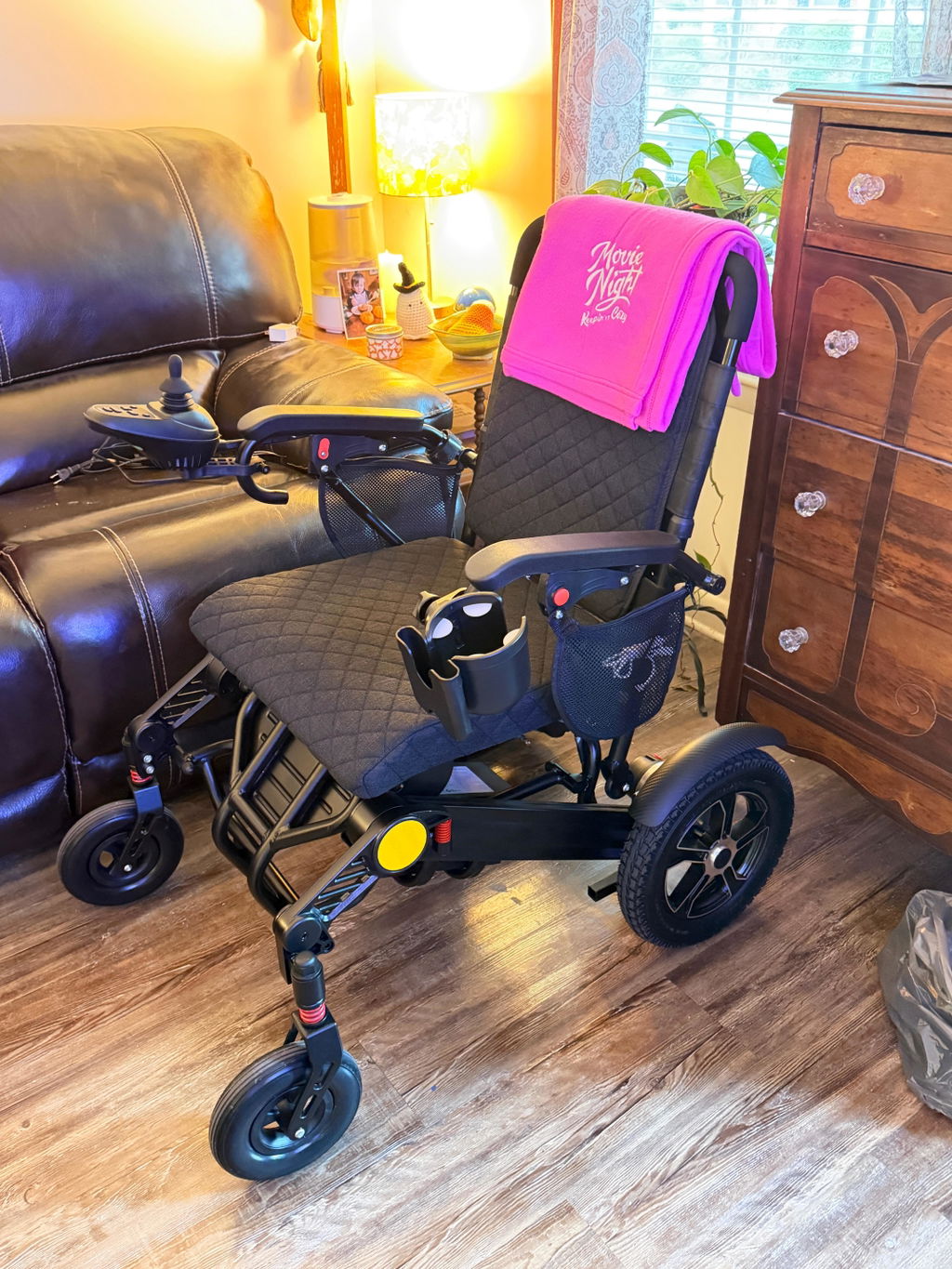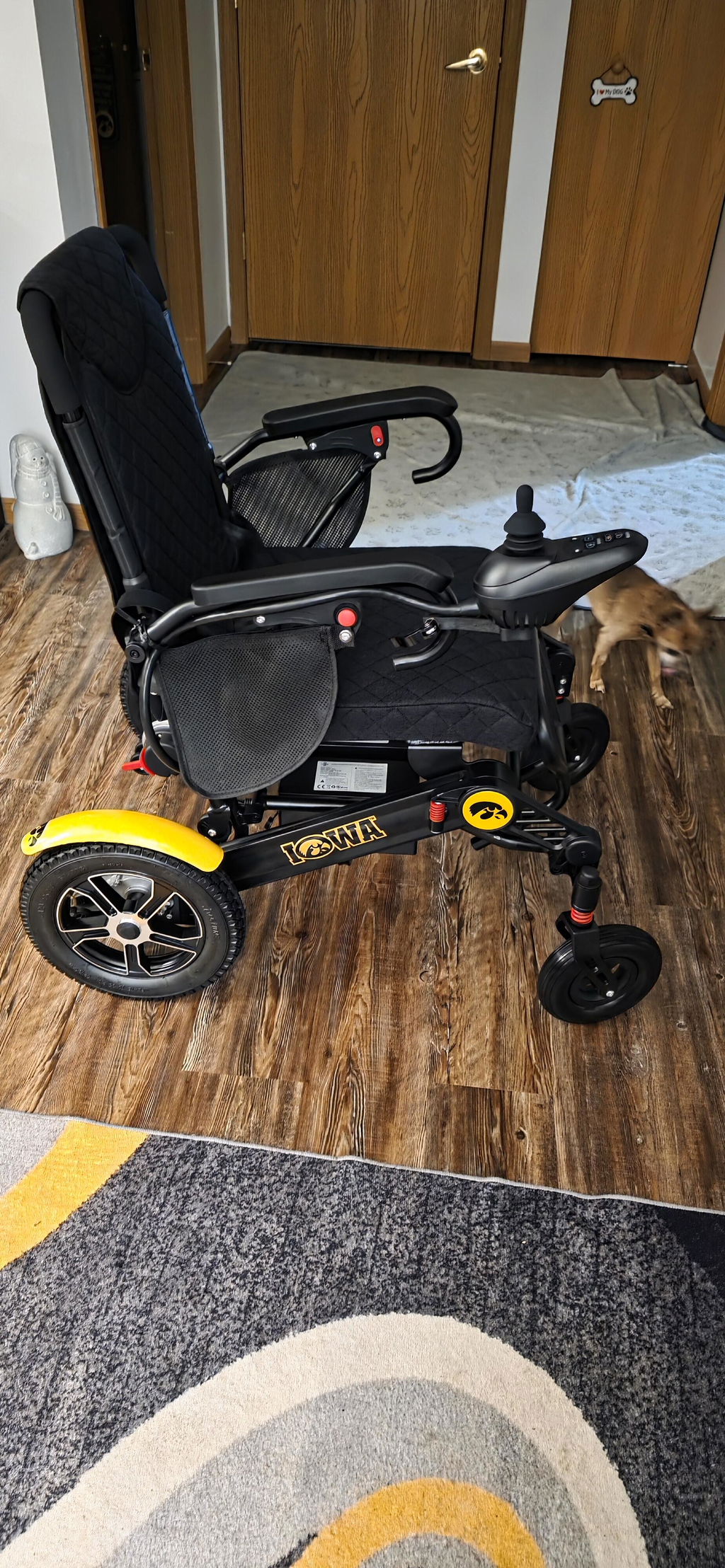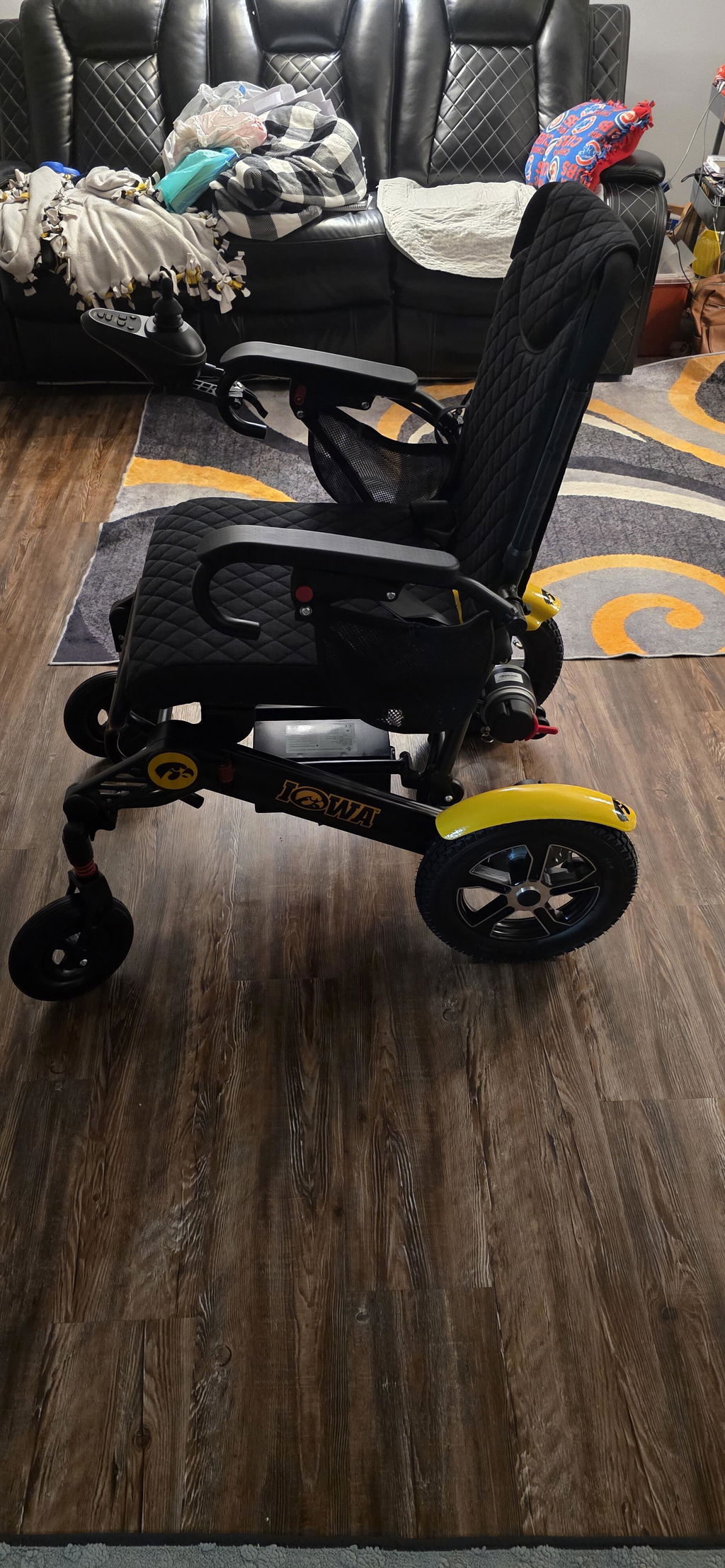
Remote Control Function
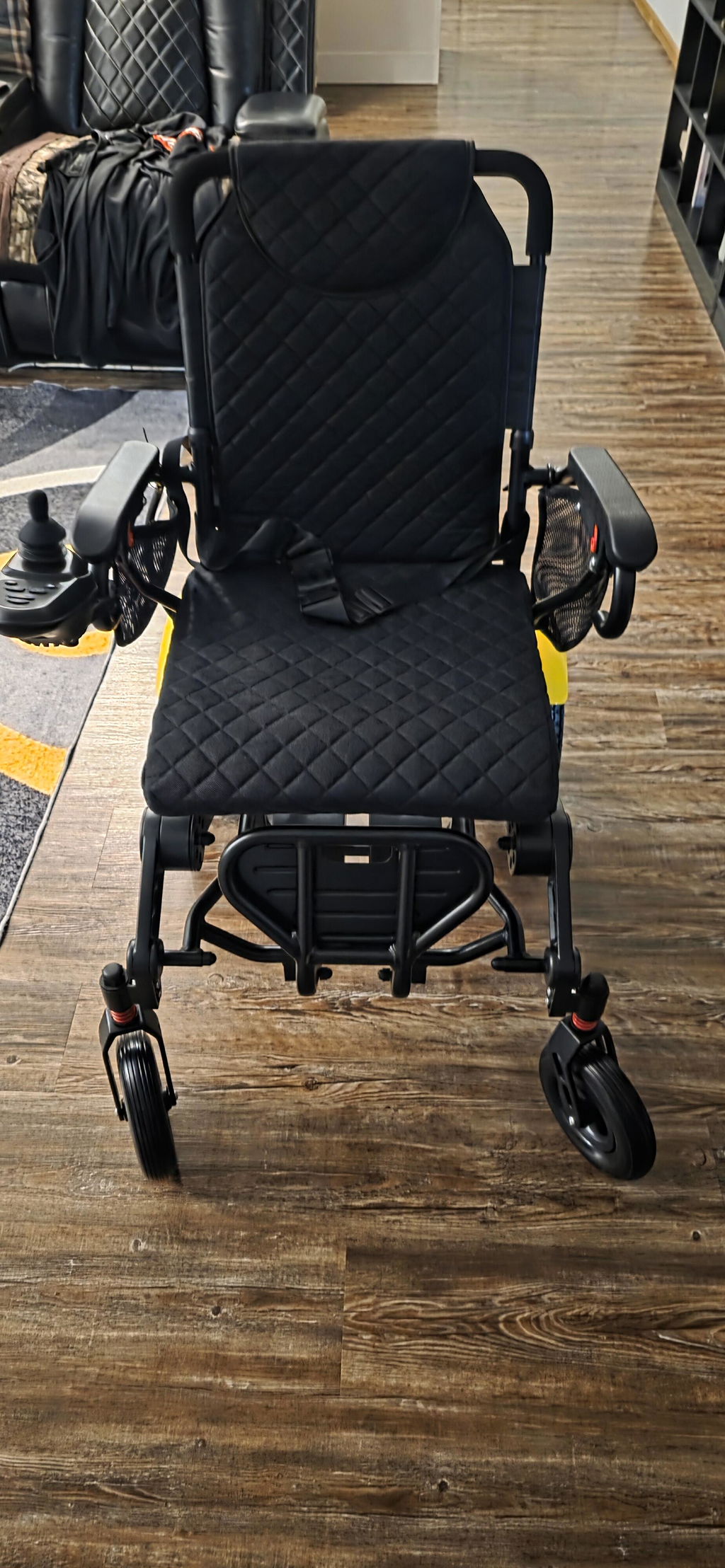
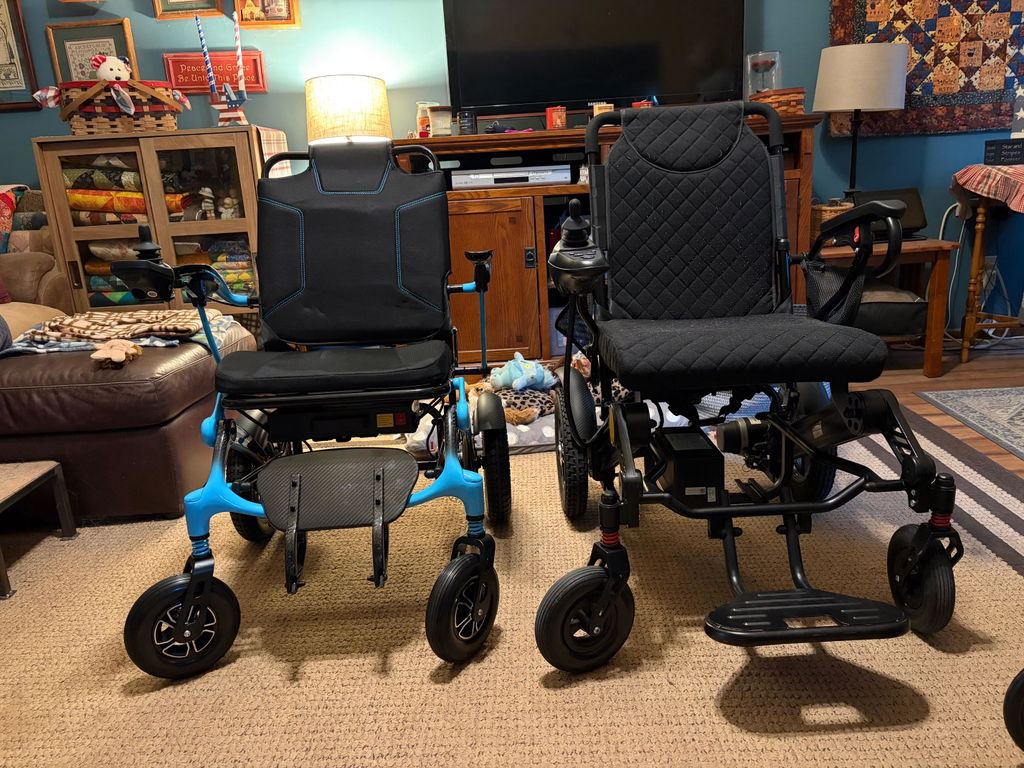
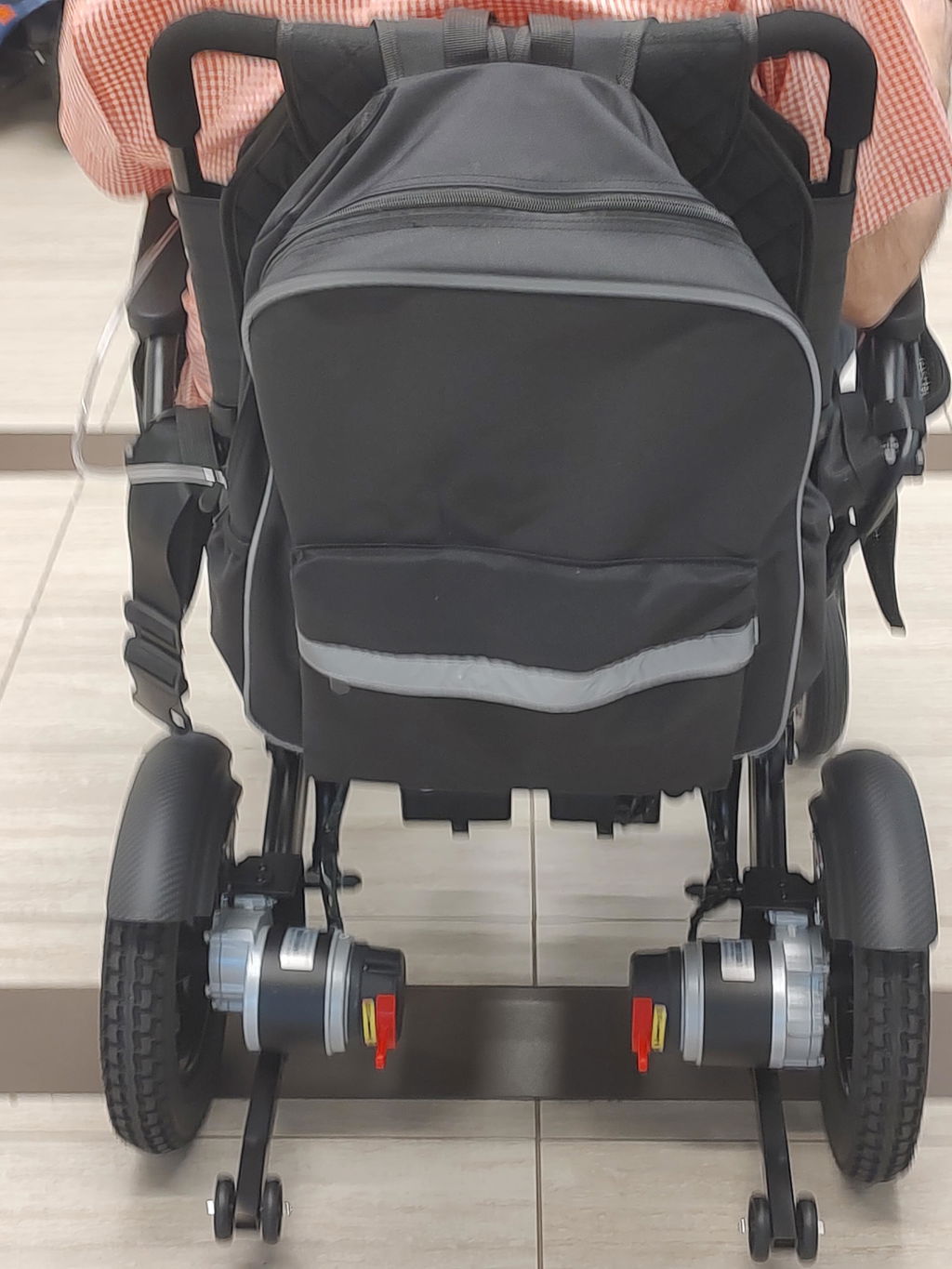
The Bluetooth caregiver remote control allows a caregiver or companion to move the wheelchair without sitting in it. It is useful for repositioning, parking and bringing the chair closer when assistance is needed.
Which Models Include a Remote Control?
| Model | Bluetooth Caregiver Remote Included? |
|---|---|
| KERDOM DX07 | Yes |
| KERDOM DX08 | Yes |
| KERDOM DX07 Pro X | Yes |
| KERDOM Titan X24 | Yes |
Use the remote supplied for your chair. Do not assume remotes are interchangeable between models or controller versions.
Key Benefits
- Convenient positioning: Move the chair into a suitable parking or storage position without sitting in it.
- Caregiver assistance: Give a companion another way to assist, following the operating instructions for the chair.
- Easier preparation: Bring an unoccupied chair closer before use or move it out of the way after use.
- More flexible daily use: Assist with positioning in clear indoor spaces where an appropriate route is available.
Before First Use
Follow the pairing and operating instructions supplied with your wheelchair and remote. The exact controls and pairing procedure may vary by controller version.
First become familiar with the remote using an unoccupied chair, on firm, level ground in a clear area. Start at a low speed. If the chair does not respond as expected, stop using the remote and contact KERDOM for assistance.
DX07, DX08 & Titan X24: Bluetooth Remote Guide
The black wireless remote shown below is compatible with KERDOM DX07, KERDOM DX08 and KERDOM Titan X24. Its light, ergonomic design makes everyday positioning and caregiver assistance comfortable and convenient.


Key Features:
- Batteries included: The remote comes with batteries. Check that they are correctly installed before switching it on.
- Smooth Bluetooth control: Bluetooth connectivity provides smooth, responsive handling for supervised wheelchair movement.
- Light, ergonomic build: Designed for a comfortable grip and convenient everyday use.
- Quick first-use pairing: Pair the remote with your wheelchair controller and check the connection before first use.
View the Bluetooth Caregiver Remote Control for product details.
Know Your Controls:
| Control | Function |
|---|---|
| Indicator light | Shows the remote’s status. Alternating red and green flashing is used during Bluetooth reset and re-pairing. |
| Joystick | Controls the wheelchair’s direction of movement. |
| Power On/Off | Switches the remote on or off; also used with Speed Down for Bluetooth reset and re-pairing. |
| Horn button | Sounds the wheelchair’s horn. |
| Speed Up | Increases the wheelchair’s speed setting. |
| Speed Down | Decreases the speed setting; also used with Power On/Off for Bluetooth reset and re-pairing. |
Use the matching guide: These instructions apply to the black remote pictured here for DX07, DX08 and Titan X24. The DX07 Pro X YT605 remote has a different layout and pairing procedure, explained separately below.
DX07, DX08 & Titan X24: Bluetooth Pairing
Pair the remote before first use. Use an unoccupied wheelchair on firm, level ground, with a clear area around it.
Reset and Re-pair Bluetooth:
- Power on the controller: Switch on the wheelchair’s main controller.
- Use the remote’s buttons: Press and hold the remote’s Speed Down and Power On/Off buttons together until its indicator flashes red and green alternately to reset and re-pair Bluetooth. Use these buttons on the remote, not the main controller.
- Check before moving: Allow pairing to complete according to the supplied instructions. Select a low speed, then gently test the joystick, speed buttons and horn while keeping the chair in sight. Alternating red and green flashing alone is not confirmation of a completed connection.
If it does not connect: Check the batteries and confirm that the remote matches your wheelchair’s controller. If pairing fails or the chair responds unexpectedly, stop using the remote and contact support@kerdom.com with your model and a photo of the remote.
DX07 Pro X Remote: Controls & Button Guide
This guide covers the YT605 handheld remote shown below, supplied for your DX07 Pro X. Match the picture to your remote before following these steps; other remotes and controller versions may work differently.

What Each Control Does:
| No. | Control | How to Use It |
|---|---|---|
| 1 | Power button | Press and hold for about 1 second to switch the remote on or off. |
| 2 | Clear button | Used with the power button to clear a pairing record. It is not a driving-stop button. |
| 3 | Actuator folding | On a compatible powered-folding chair, hold until the main controller’s speed indicator flashes, then release to start folding. |
| 4 | Speed decrease (−) | Press to lower the speed setting. |
| 5 | Speed increase (+) | Press to raise the speed setting within the remote-control speed limit. |
| 6 | Actuator unfolding | On a compatible powered-folding chair, hold until the main controller’s speed indicator flashes, then release to start unfolding. |
| 7 | Actuator stop | Press to stop folding or unfolding actuator movement. Do not treat this as a driving emergency-stop button. |
| 8 | Horn | Press and hold to sound the horn; release to stop it. |
| 9 | Joystick | Move it to control the chair’s direction of travel. |
| 10 | Status indicator | Shows connection, power and low-battery status. |
| 11 | Battery cover (rear) | Slide the cover down to access the AAA battery compartment. |
Check folding compatibility first: Folding symbols on the YT605 do not mean every DX07 Pro X configuration has powered folding. Use buttons 3, 6 and 7 only if your chair has a compatible folding actuator and its wheelchair instructions permit this function. Otherwise, follow the chair’s manual folding instructions.
DX07 Pro X: Pairing & Your First Test
Set up the connection with the chair unoccupied, on firm, level ground in a clear area. Keep it in sight and start at the lowest speed for your first movement test.
Pair and Check the Connection:
- Prepare both controllers: Check that the chair and remote have battery power. Start with the remote switched off, then turn on the wheelchair’s main controller.
- Enter pairing mode: On the main controller, hold the speed decrease (−) button for at least 3 seconds until it beeps continuously. Keep holding it—releasing exits pairing mode.
- Switch on the remote: Hold its power button for about 1 second and keep it close to the main controller. The remote indicator flashes red and green alternately during pairing.
- Confirm success: Wait for three short beeps from the main controller and speed setting 2. The remote indicator should flash green slowly. You can then release the main controller’s speed decrease button.
- Test gently: Reduce the speed, gently move the remote joystick and check the chair’s response. Check the speed buttons and horn. Switch the remote off and on once to check reconnection.
- If pairing fails: Repeat the procedure. If the chair still does not connect or responds unexpectedly, stop using the remote and contact KERDOM.
Everyday Operating Notes:
- Speed limit: Remote-controlled movement is limited to the maximum speed of setting 2. This is a controller setting, not a speed of 2 mph.
- Main controller priority: If the wheelchair’s main controller and remote are operated at the same time, the main controller takes priority.
- Automatic sleep: The remote switches off after 3 minutes without joystick activity. Switch it back on and check the connection before moving the chair.
- Correct shutdown order: Turn off the remote first, then the wheelchair’s main controller. Otherwise, the remote can wake the main controller again.
Status Lights, Batteries & Re-pairing
The indicator helps you check the remote at a glance. Replace low batteries promptly, and clear pairing only when you need to connect to a different compatible main controller.
Read the Indicator:
| Light Pattern | Meaning |
|---|---|
| Red and green alternate for 1 second | Powering on |
| Red flashes rapidly for 1 second | Powering off |
| Red and green alternate continuously | Pairing |
| Green flashes slowly | Normal operation |
| Red flashes slowly | Low remote battery |
Battery and Connection Care:
- Install AAA batteries: Switch the remote off. Press down on the rear cover and slide it downward. Insert AAA batteries following the +/− markings, then slide the cover upward until secured. Remove the batteries for extended storage.
- Clear a previous pairing: Turn the remote off. Hold the clear and power buttons together for more than 3 seconds; release when the red and green lights have each flashed three times. Alternating red and green indicates the previous record has been cleared. Hold power to switch off, then follow the pairing steps above.
- Avoid an unintended connection: Keep other compatible wheelchair controllers switched off while clearing a pairing record. The manual notes that the remote may automatically pair with a new main controller that is already on.
Folding Controls & Safe Remote Use
Keep people, hands, clothing and belongings clear of the chair’s moving parts. The YT605 is a supervised control device, not an obstacle-avoidance system.
Before Using These Functions:
- Powered folding, if equipped: Confirm your chair’s actuator compatibility before using the folding or unfolding buttons. The chair must be unoccupied. Keep its folding path clear and use actuator stop (7) to stop actuator movement.
- Keep the remote dry: Do not expose it to rain, splashes or immersion. Switch it off and disconnect it from the main controller before wiping it with a dry cloth.
- Respect radio-use restrictions: The manual says not to use the remote in medical facilities, on aircraft, at gas stations, or near automatic doors, fire alarms or other automatic-control equipment. Turn it off wherever wireless devices are prohibited.
- Medical-device clearance: Do not use the remote within 20 cm of a pacemaker or other medical device.
Read the DX07 Pro X YT605 Remote User Manual (PDF) for the complete operating and safety instructions.
Helpful Safety Notes
Keep the chair in sight and remain close enough to supervise its movement. Check for people, pets, obstacles and drop-offs before operating it. Use slow, controlled movements in tight spaces, and only use remote control with a seated rider as permitted by the supplied instructions and with the rider’s agreement.
Remote control is a movement-control feature, not an autonomous navigation or obstacle-avoidance system. It does not replace supervision or safe-route planning.
Frequently Asked Questions
| Question | Answer |
|---|---|
| Does the remote operator have to sit in the chair? | No. A caregiver or companion can operate it from alongside the chair while keeping it in sight. |
| Is the remote included? | Yes. DX07, DX08, DX07 Pro X and Titan X24 include a Bluetooth caregiver remote control. |
| Do I need to pair it? | Follow the supplied instructions and check the connection before first use. Pairing or reconnection may be required for your controller version. |
| Does it fold the wheelchair automatically? | The YT605 remote shown for DX07 Pro X has folding-actuator controls, but they work only with a compatible powered-folding chair. Buttons alone do not confirm this capability. Follow your chair’s folding instructions; do not assume other models or configurations fold automatically. |
| What should I do if it does not respond? | Stop use, check the power and connection as directed in the instructions, and contact support if the issue continues. Do not attempt undocumented resets. |
Need Help?
Visit our User Manuals page or email support@kerdom.com. Include your order number, wheelchair model and clear photos of the controller and remote so our team can provide the correct guidance.