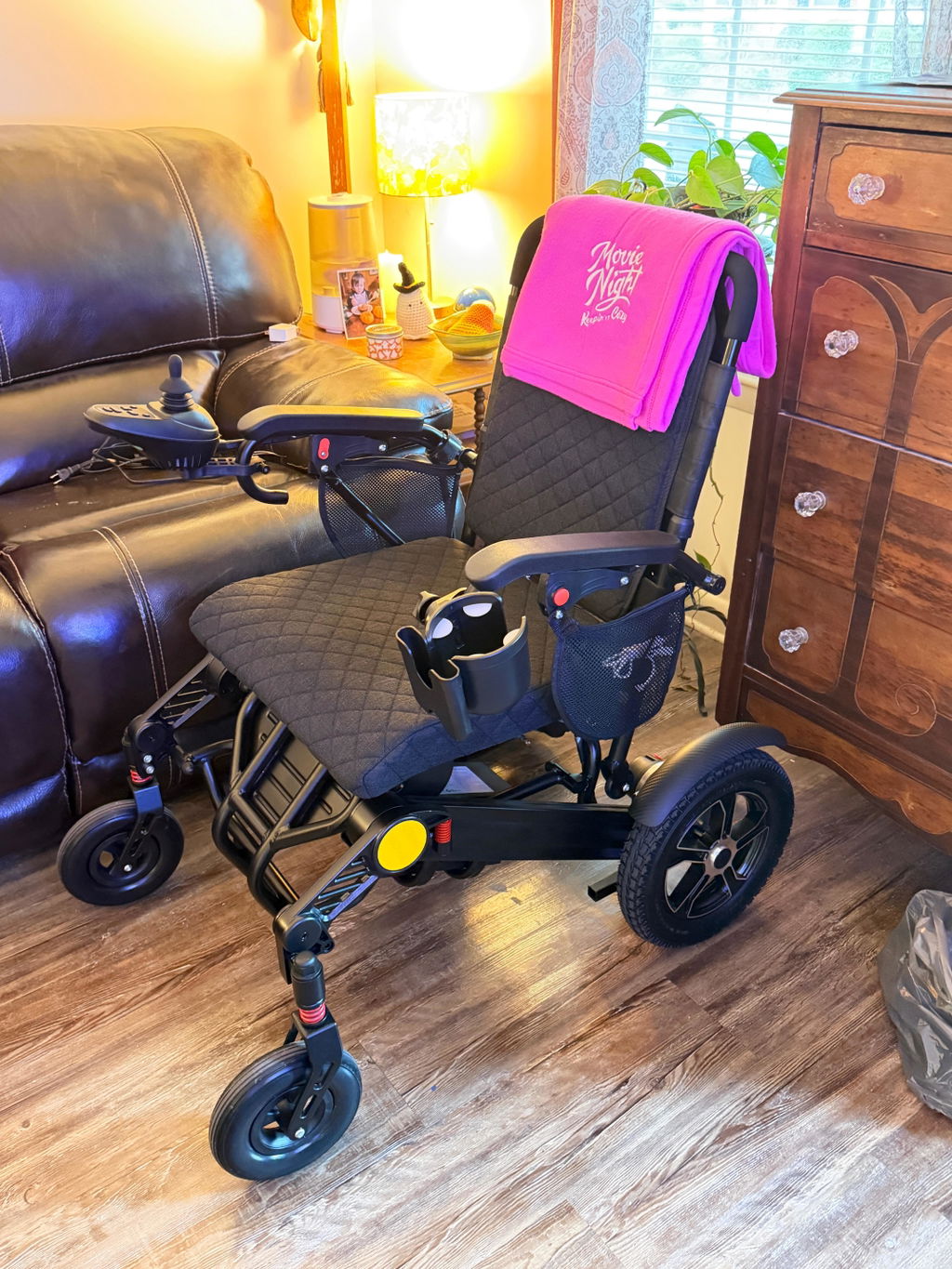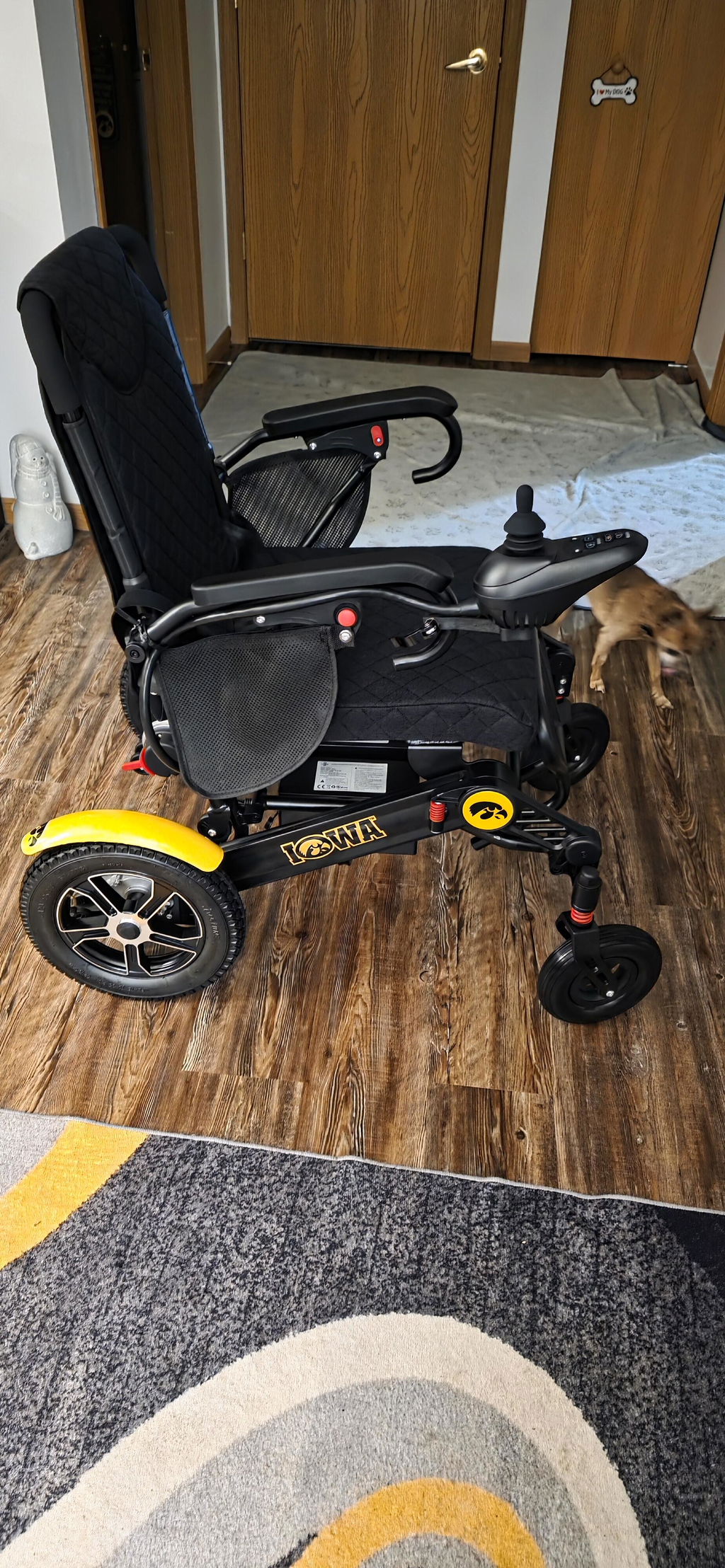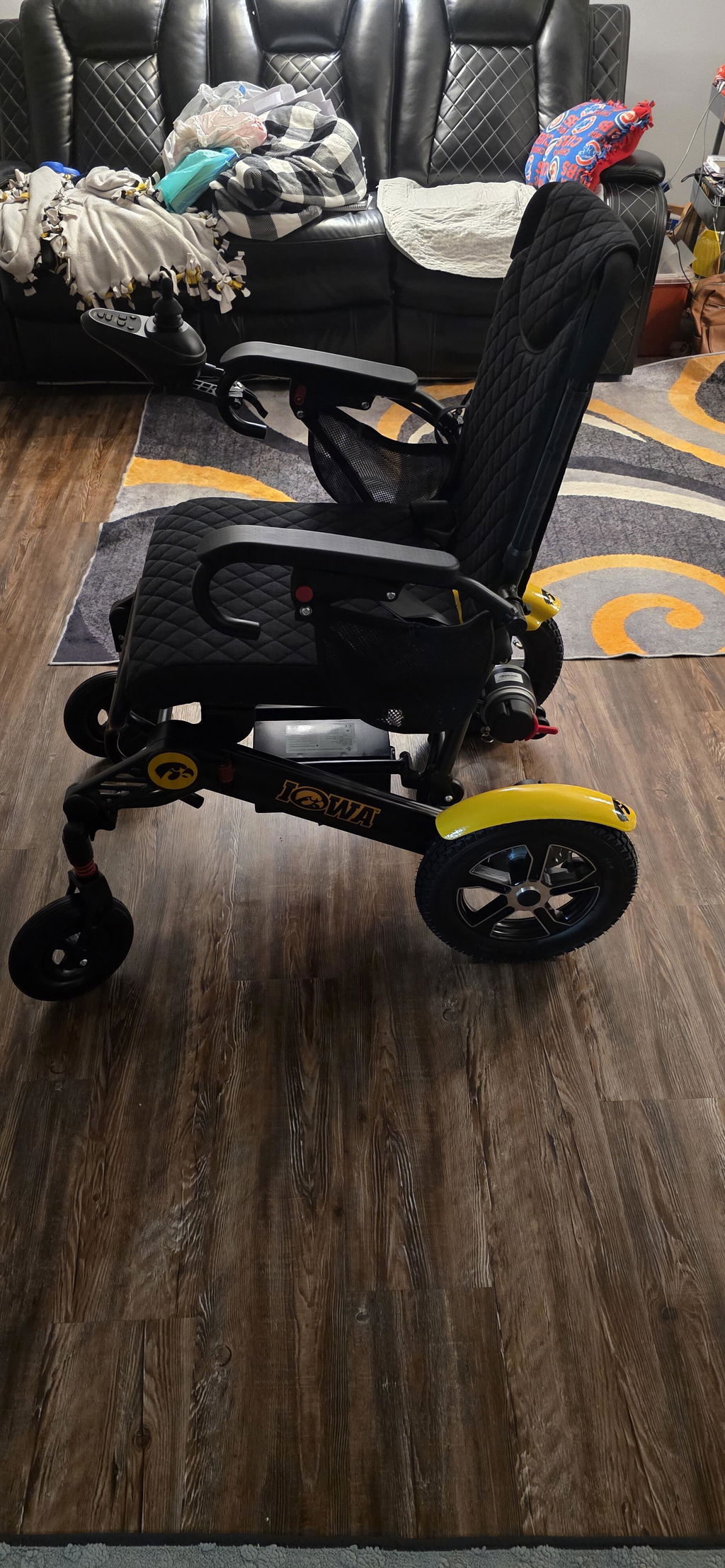
How to Adjust Your KERDOM DX07 Power-On Speed
Prefer a gentler start? You can change the speed level your DX07 selects when the controller is switched on. Make all adjustments while the chair is stationary.
Enter the Speed Settings
The default power-on speed is S3 on this controller. You can lower it if you prefer the chair to start at a slower speed each time.
Open the Settings Menu:
- Park safely: Keep the chair stationary on firm, level ground and turn the joystick controller OFF.
- Hold both buttons: Press and hold the “+” button and Power button together.
- Confirm the menu: Wait for the screen to turn on and a beep to sound. The display will show F1.
Choose Your Power-On Speed
Select a startup speed that feels comfortable for your normal surroundings. This setting changes the speed level selected at the next startup.
Select and Adjust:
- Find F7: Press the Horn button to cycle through the settings until F7 appears. This opens the speed-memory interface, which displays 006.
- Adjust the value: Use “+” or “–” to change the speed setting. Lower numbers select a slower startup speed.
- Example: Set 002 to select Speed Level 2 at startup.
Save & Check Your Setting
Save the change before leaving the settings menu, then check the result before moving.
Finish the Adjustment:
- Save: Press the Power button once. The battery icon will flash rapidly to confirm that the setting has been saved.
- Switch off: Press the Power button again to turn the controller off.
- Check the next startup: Turn the controller back on. Confirm that it starts at your selected speed level, then practice slowly in a clear, level area.
Important Notes
A slower starting level can make everyday maneuvering more comfortable, but it does not replace careful driving.
Before Your Next Ride:
- Recheck the selected speed: Always confirm the displayed level before moving, especially after changing settings.
- Leave other settings unchanged: If F1, F7 or the save confirmation does not appear as described, stop and contact KERDOM rather than changing unfamiliar menu values.
Need help? Email support@kerdom.com with your order number and a clear photo of your controller display and buttons, or contact KERDOM Support.